Table of Contents
Introduction
Note: For govService, Granicus is the data processor, and their customer is the Data Controller. We suggest reading this in conjunction with our govService and GDPR/CCPA Best Practice Guide.
The Compliance Console assists organizations in complying with the General Data Processing Regulations/CCPA. The Console contains a selection of configuration options which can be used to:
- Configure and present blanket messages to users before they can complete a form - ideally used to provide additional Privacy Notice information/seek consent if required (note: consent is rarely applicable for govService requests).
- Set timeframes on the retention of data
- After the retention period elapses, all data which exceeds the specified time* will be permanently removed from the platform and no longer available for users to view against the customer record.
Keep in mind that:
- This does not remove the data from your locally held Data Dumps
- This does not remove data from local storage systems (local responsibility)
- This does not remove data from external systems
- Unpublishing a process does not affect the data retention period set for previously submitted cases. Expected behavior: the job list displays Name not found in place of the process name.
*Note: The retention processor is throttled each Friday evening – to ensure the work is completed before start of normal working day, this may mean where there is a high volume of data to be removed – especially once initially configured – it may not remove all data in one overnight run, and make require time to clear the backlog.
Note: The compliance console does support international date formats. International users should see dates in their local formats.
Accessing the Compliance Console
Permissions to access the Compliance Console are set in the Permissions Manager.
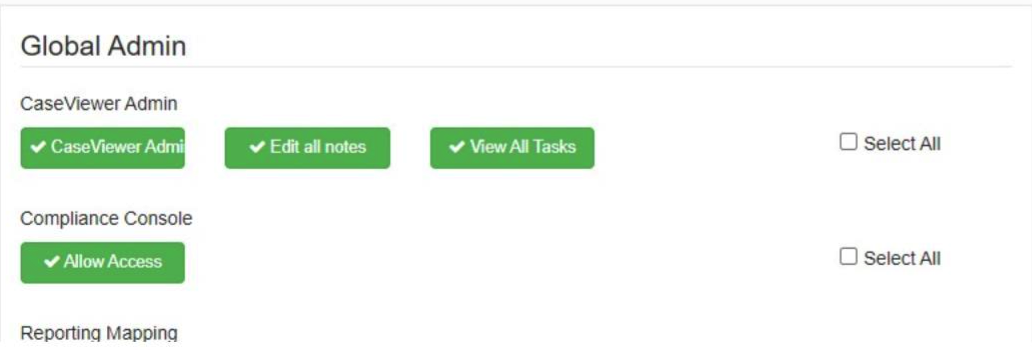
Compliance Console Menu
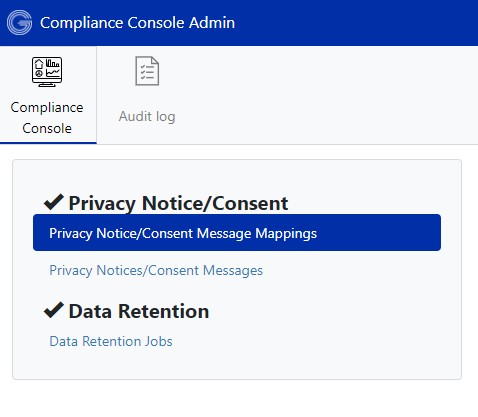
Audit Logs
See GDPR - Audit Logs
Privacy Notice and Consent
The Privacy Notice/Consent Message provides two separate functions:
1. Provides specific Privacy Notices to individual forms, over and above any standard Privacy Notice defined on signing up for a Customer Portal Account or given on accessing Service. See guide to best practice for GDPR Eg you may have an overarching Privacy Notice on your website/footer which states why you collect basic details like name/address, but when completing a form relating to housing benefits for example you would be obliged to give an additional Privacy Notice at the point of collection(ie when the user completes the form) defining how and why you will use/retain data.
2. Allows consent to be obtained from the form filler before embarking on a form submission where consent is required, eg signing up to marketing lists. (note consent is rarely applicable for govService requests). A default example is provided which could be used when consent is applicable – but this would not be the normal requirement as most services will contractual or legal.
In the Privacy Notice/Consent screen, you can set up any number of notices by giving them a title (max length 30 chars) and the message content.
These messages display in front of selected processes requiring users to acknowledge them before they can progress to complete the first stage form. As an alternative option you can add your own message as static text to each process, but the Privacy notice within Compliance Console enables you to roll out changes easily.
Note: Consent is not required when requesting a service or entering into a contract read govService and GDPR/CCPA Best Practice for more information on the legal basis for collection.
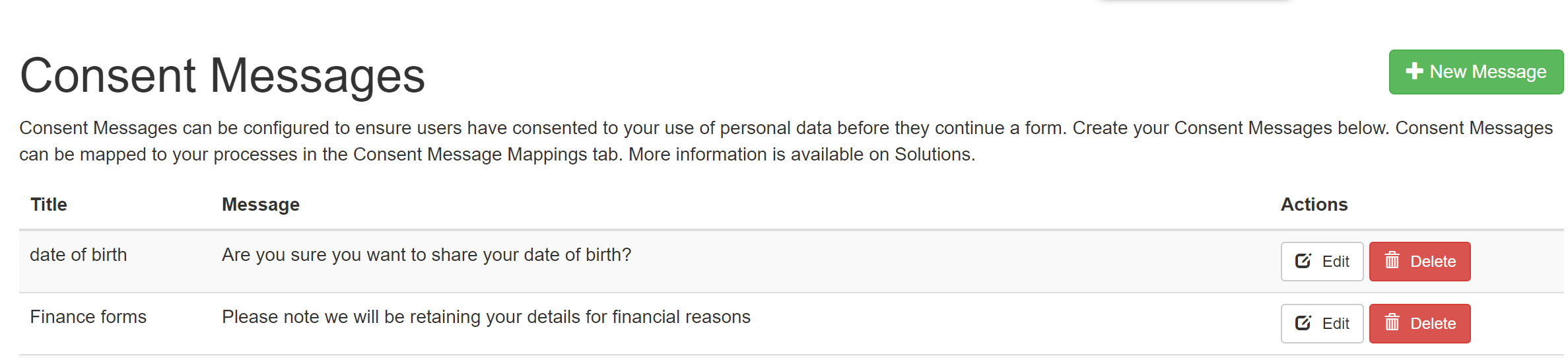
Existing messages can be edited or deleted as required.
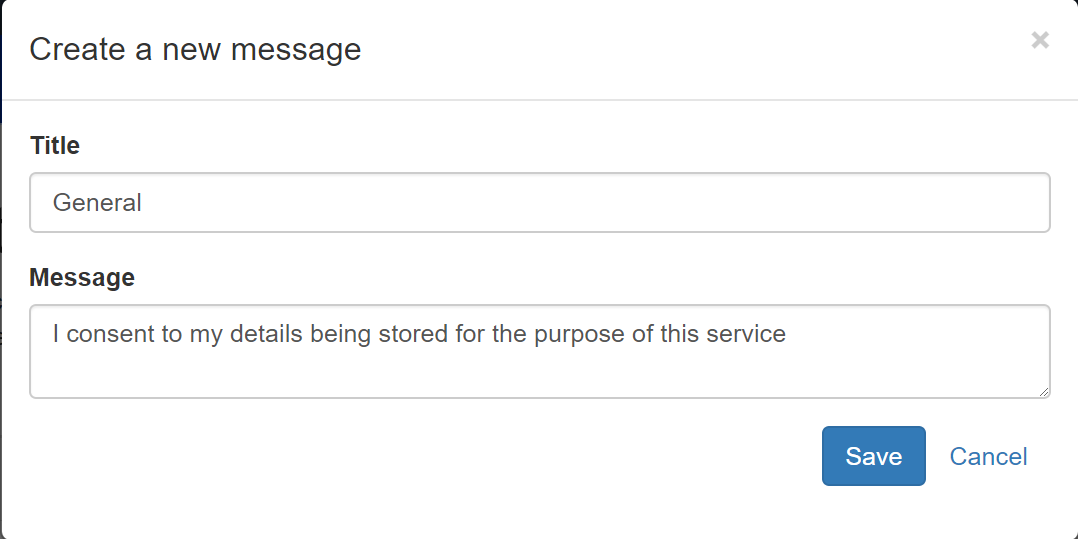
This allows different messages to be created for different environments, such as Service or Self (for ease of use you may wish to use the title to indicate to which environment the message should be used against). A consent message can be formatted to include HTML links, such as for Privacy Policies. e.g., <a href="https://www.yourlink.com" target="_blank">Our Privacy Policy</a>
Privacy Notice Translations
Where additional languages have been configured in Customer Portal Admin, it is possible to provide translated content. When a Customer Portal-user then accesses a process, the Privacy Notice displays in the appropriate language.
To add the translated message, edit an existing consent message and select the language required from the tabs (green tab heading indicates translation exists, red tab title indicates not translation provided).
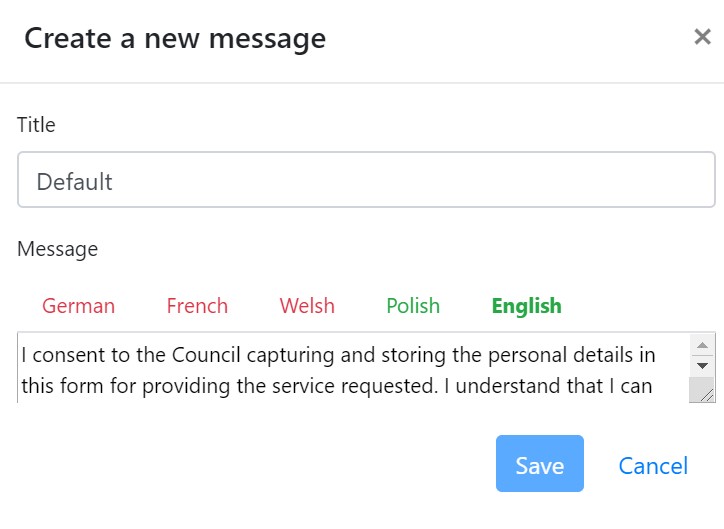
Note: If a translation does not exist for the language, then NO consent message is displayed.
Additional Notes
The following error message are provided when a User without a UCRN edits the consent message mappings: A valid UCRN is required to perform this action - please check your user account settings. This error is only apparent when the user does not have a UCRN set in Permission manager.
Note: When the API call to check for a consent message fails, it stops a form from being completed in order to ensure that information is not taken without the citizen's consent. The API runs three times in order to increase the chances of success.
When using the Compliance console, the Privacy notice version that was in operation for each submission is recorded in the database. So, if there was need to prove which Privacy notice a user read at the time of submission, this could be identified by checking the DB, which you can request through Granicus support.
top of page
Privacy Notice Mapping
In the Consent Message Mapping screen, a message you have configured in the 'Privacy notice' screen can be mapped to any number of your processes. You can specify which products the message should show in (e.g. Customer Portal only, Customer and Staff portal, etc).
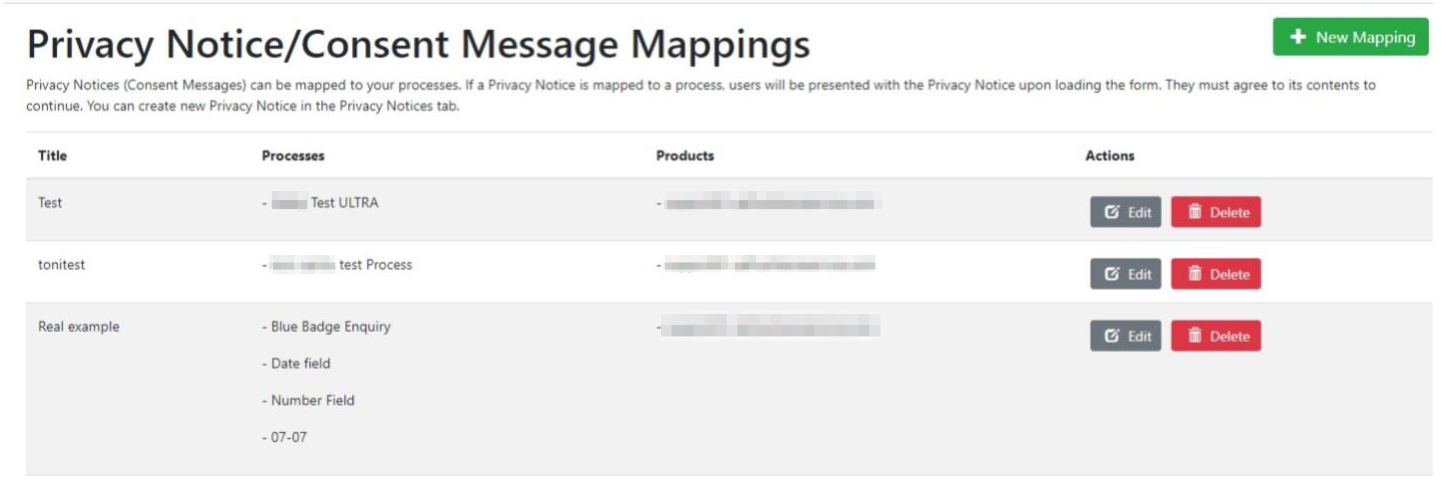
Existing Mapping relationships can be edited/deleted as required.
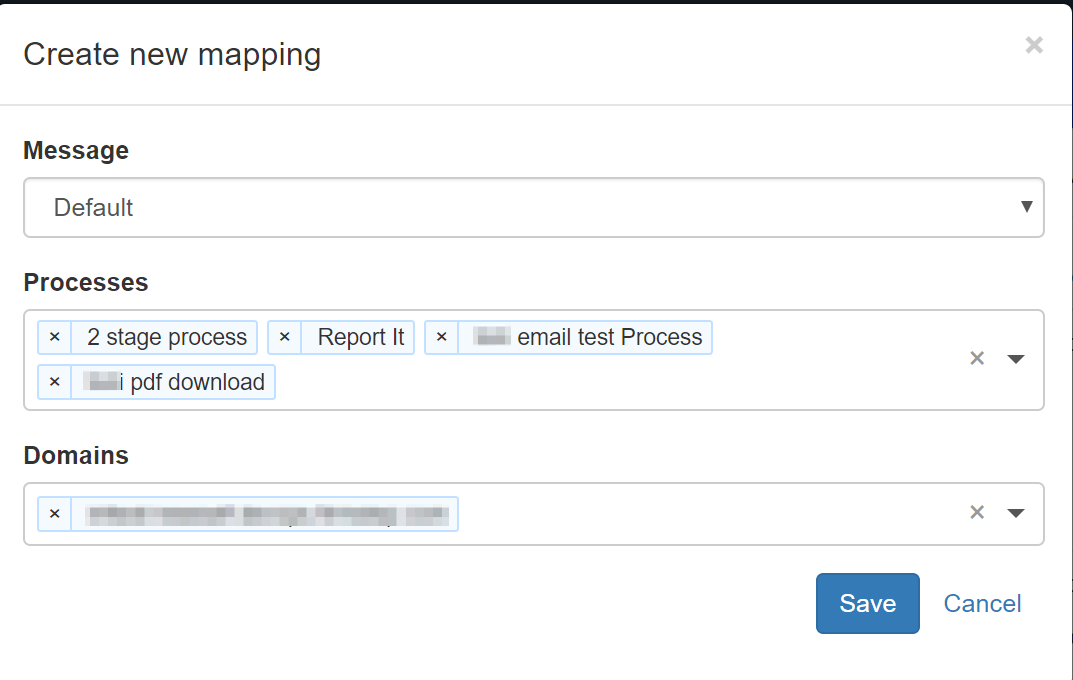
To add a new Privacy Notice mapping relationship, first select the message you wish to apply as created above. Then select the process(es) to be assigned to that message (you can filter on processes listed by tying the name of the process), then similarly select the domain(s) (e.g. Customer Portal or Customer Service Hub etc.) that you wish to use this message for these processes.
This enables different messages to be assigned on Self/Service as necessary for the same process. Then save your settings.
Note: If editing a mapping, you can use the x to remove a process or to add new ones as required.
Where a mapping exists the form filler is required to consent before they can view/complete the form itself.
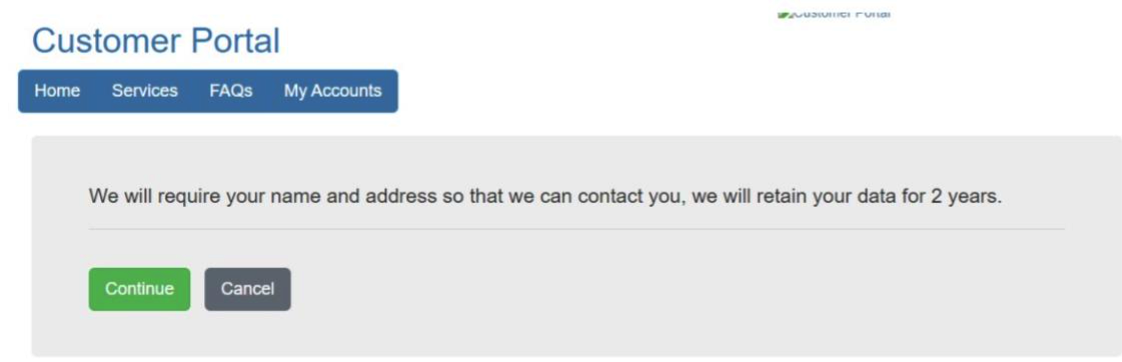
The Buttons on the compliance message can be configured locally as required from the defaults of Continue and Cancel, using the Self Admin/Content/Translations/System Pages at https://yourselfsite.firmstep.com/admin/self/Content/SystemPages#consentMessagesPageTab
Note: You cannot automatically add a Privacy Notice to all processes. Manually add the Privacy Notice by selecting each process to which you wish to assign the message. Most Processes have specific data requirements and a range of retention periods, so it is unlikely that one size fits all.
Customers are unable to create multiple consent messages with the same ID or name. This is to ensure that the system knows which message to display or call.
top of page
Data Retention Jobs
In the Data Retention Jobs screen, you are able to set individual retention periods for the following items:
- Audit Retention period (relates to audit logs) - period configurable locally
- Customer Accounts – Unconfirmed Users are removed.
- Saved Forms Retention – Saved forms allow citizens to enter information into a form and return later to complete and submit it. You can configure how long saved forms remain available by adjusting retention settings. Learn more about how saved form retention works.
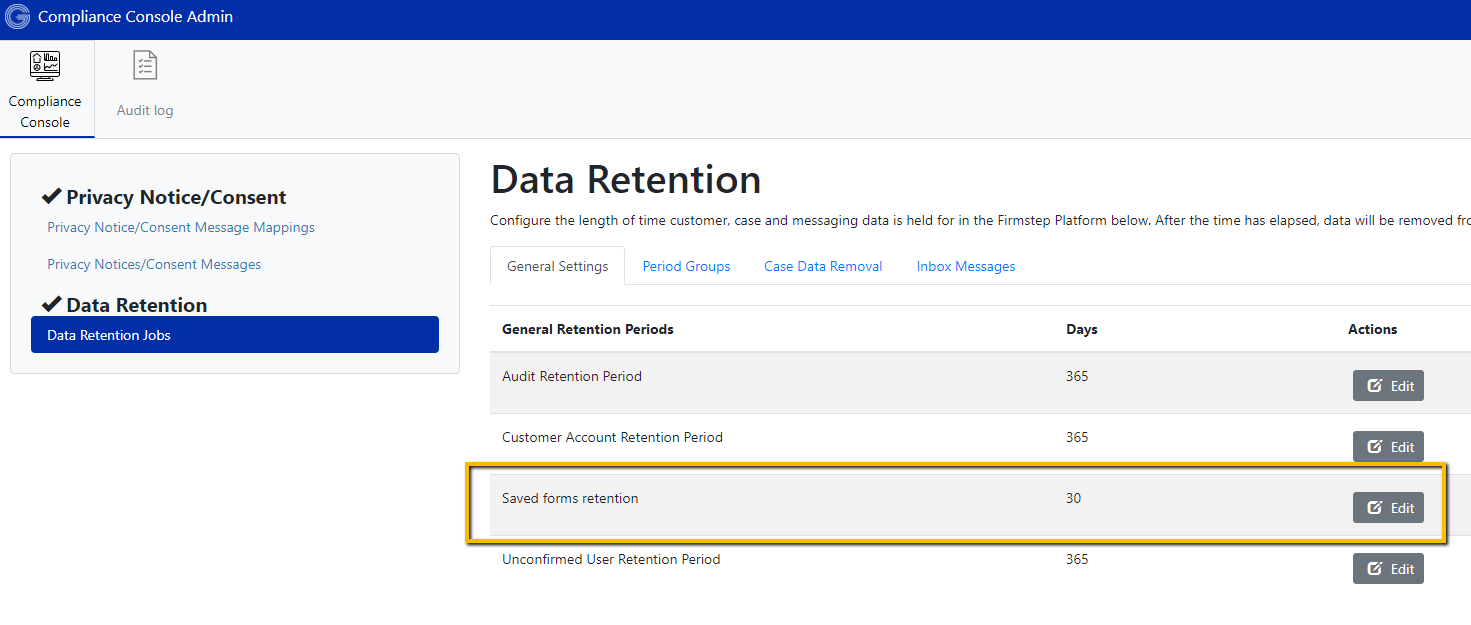
- Case Data (deletion of entire case data based on the case completion date) - for all processes including MyServices - period configurable locally
- Message Data (e.g. Inbox, Twitter or Web Chat data) - period configurable locally
- Integration Logs - has default retention period of 3 months (use data dump to retain locally as required)
Note: If any user has passed the retention period, then that user is logged/archived, but the information is not actually deleted.
If you need your system to delete these users, please contact the Granicus support team. Request that we change your retention configuration from log to delete.
Saved Forms Retention
Saved forms allow citizens to enter information into a form and return later to complete and submit it. Councils can configure how long saved forms remain available by adjusting retention settings.
Retention can be set at two levels:
- General Retention: This applies to all saved forms unless a process-specific setting is defined. You can configure this under Data Retention > General Settings > Saved Forms Retention.
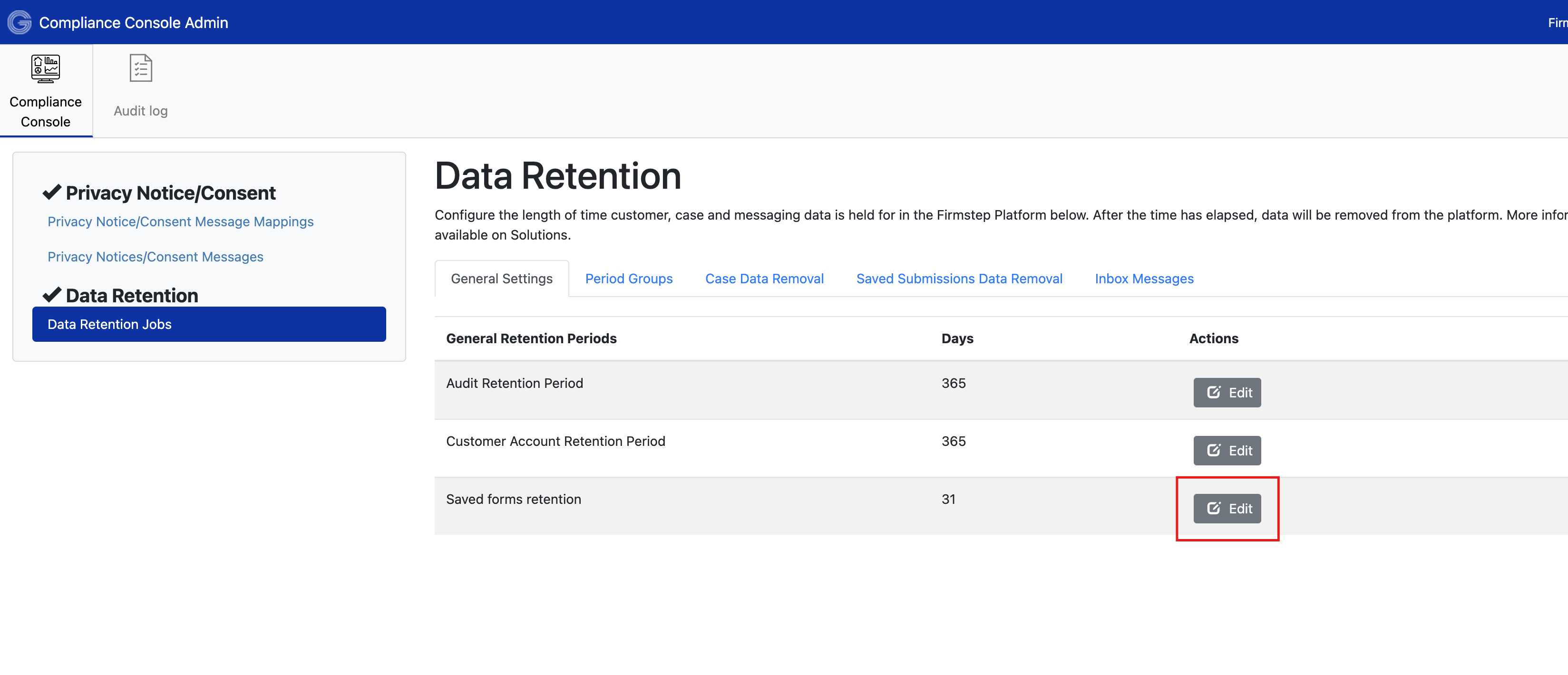
- Process-Level Retention: This allows councils to define expiry periods for individual processes, which override the general retention setting. You can configure these under Data Retention > Saved Submissions Data Removal.
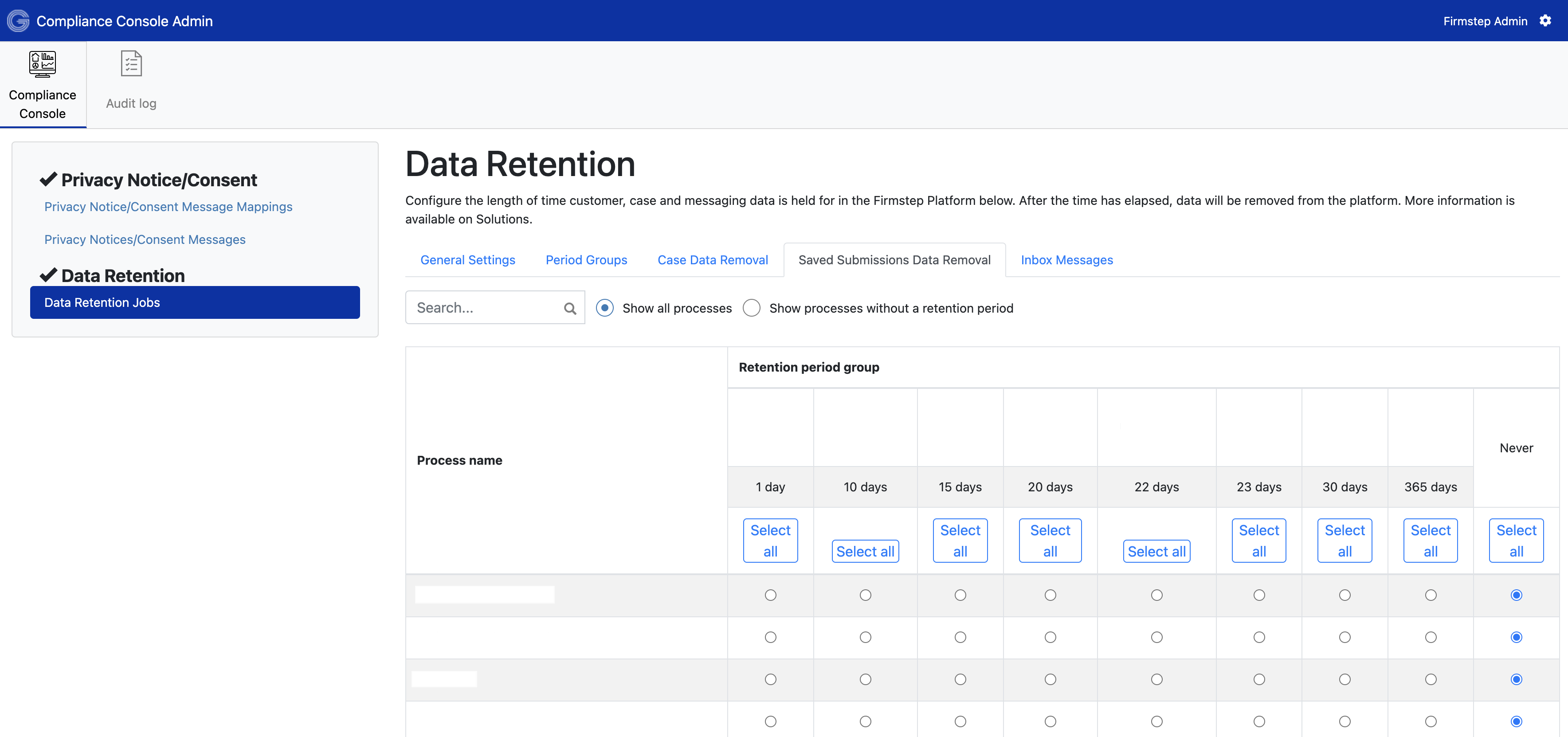
If no general or process-level retention settings are configured, the system defaults to a retention period of 180 days. After this period, saved forms are automatically deleted, and the associated links become inaccessible
Email Notifications for Saved Forms
When a citizen saves a form and email notifications are enabled in Forms Designer, they receive a confirmation email indicating that the form has been saved, along with details on how long the form will be retained.
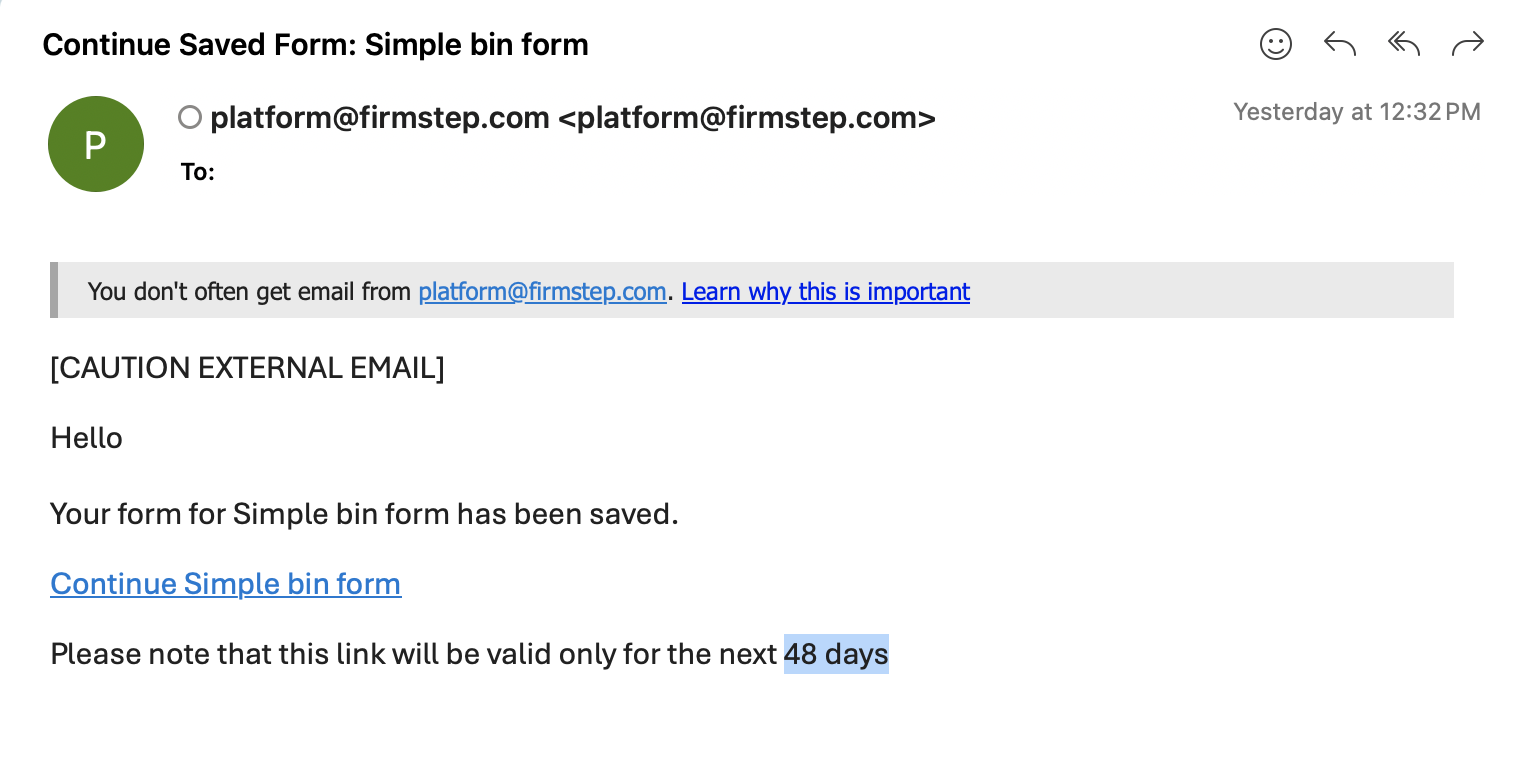
Note:
- Retention changes do not affect previously saved forms. For example, if a process-level retention setting is updated from 30 to 45 days, forms saved before the change will still expire after 30 days. Only forms saved after the change will follow the new retention period.
- Re-saving a form does not reset the expiry. The expiry is based on the original save date.
Defining Retention Periods
For a number of data groups, eg inbox messages and case data it is possible to configure a range of period groups that can then be used to control the length of time data is stored, allowing process data for say Finance to be stored longer than perhaps for other business group data. Any number of groups can be configured to meet local requirements.
Accessed at Yoursite/admin/v1/compliance/console/retention/groups
Period Groups
Any number of Retention Periods can be defined under the Period Groups (e.g., one for Finance, one for Leisure Forms, etc.) for processes as required.
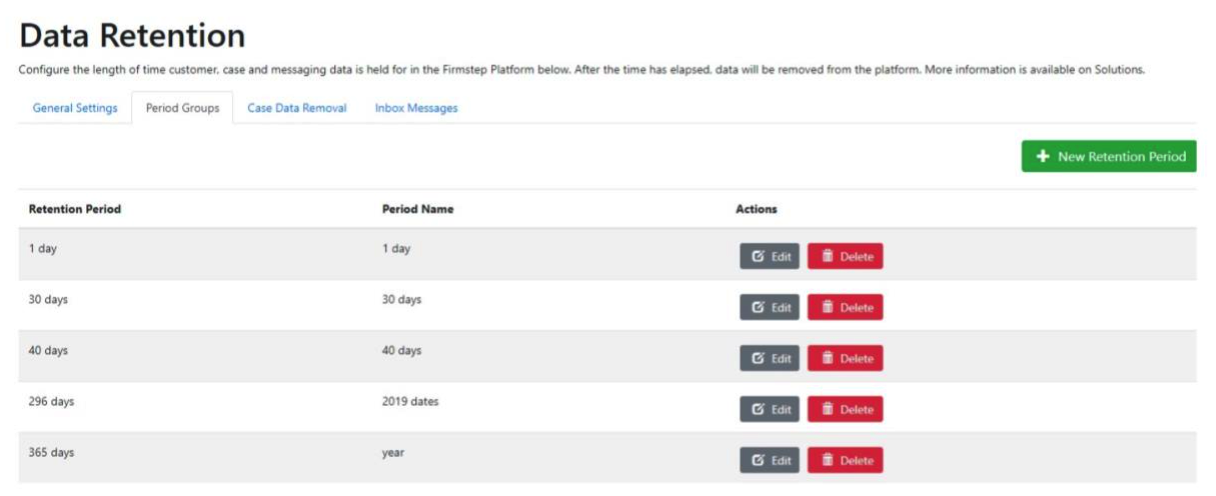
The retention period is defined in days (it is not possible to use calculations to define the retention period). Adding a retention group is simply achieved using the green New Retention Period button.
Running The Retention Processor
The processor has been limited (throttled) to remove a max of 1m rows every Friday evening for integration logs and case data. It commences at 17:00 UTC to 06:00 UTC in the UK and Ireland, and 23:00 UTC to 12:00 UTC in the US. This maximizes the volume of cases etc. to be removed each evening. It also ensures that tasks are completed nightly so that there is no impact on performance during the working day.
Case Data Removal
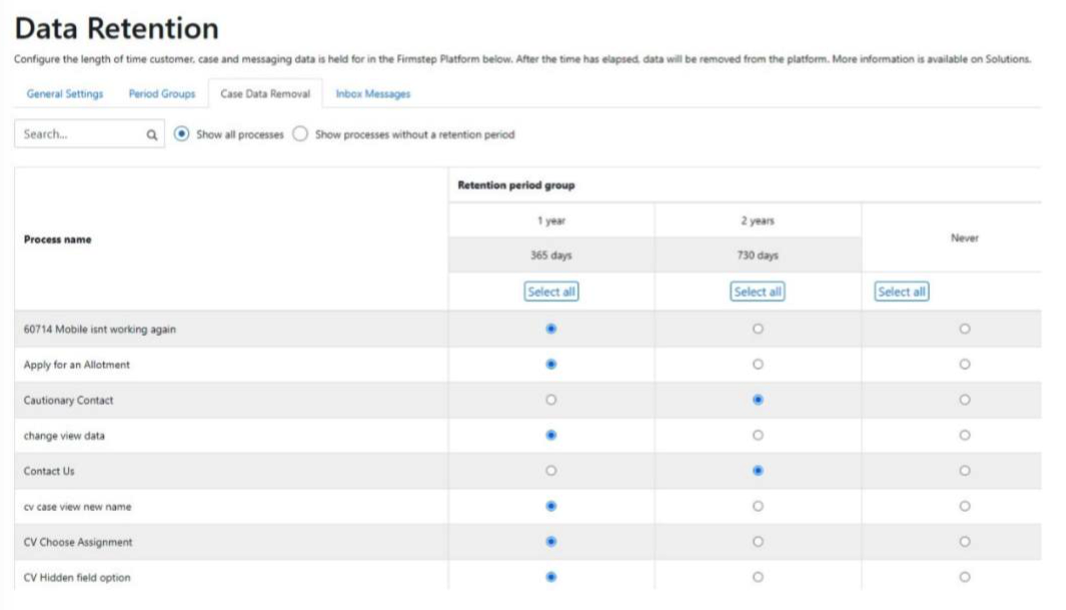
To run case retention for a given process either scroll through the processes listed or use the search box to select a specific process and then select the relevant retention period. There is also an option to list processes without retention period so that you can ensure all are covered.
Based on the retention period selected the entire case data is removed where the case completion date meets the limits defined by the retention period. Open cases are not removed. (MyServices data can be deleted in the same way).
Integration/Payment Logs
Integration/Payment Logs as viewed from the Integration Manager have a default retention period of 3 months. This cannot be changed; however, the logs can be made available in your data dump should you require a greater time period. If this is required, please contact Granicus support.
Audit Retention Period
The retention period for the audit logs can be defined in the General settings tab. The default is set at 365 days, but this can be adjusted to suit local requirements. Once the retention processor has been switched on for the site this runs.
Messages
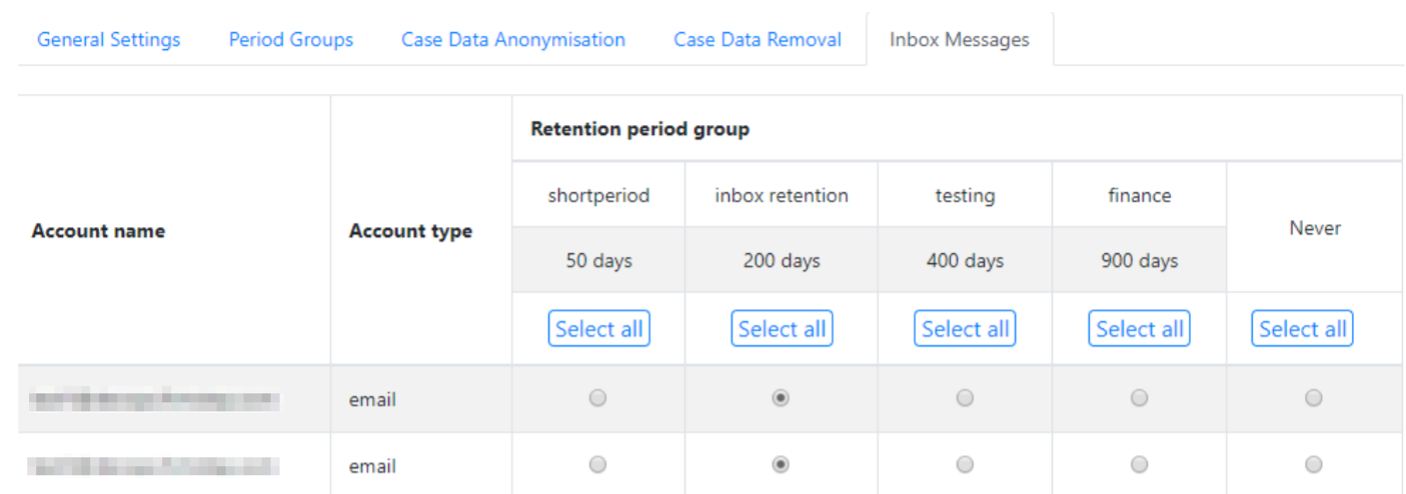
Retention periods can be applied at email account level within the inbox. First it is necessary to define the Retention period/s using Compliance Console/Data Retention Jobs/Period Groups.
Once suitable retention periods have been defined, use the Inbox Messages Tab to select the relevant retention period for each email, Chat, or Twitter Account.
Customer Accounts
Unconfirmed User Accounts
All unconfirmed user accounts are removed based on a default 365 retention period. An unconfirmed user account is generally an account where the user registered an email /password but never completed their user profile, so they are unable to access their account. For some customers the user database may have been partially populated when the site was created and these accounts will have not been confirmed. These unconfirmed user accounts are not visible in the UI or Permission manager.
We suggest customers reduce the default value from 365 to a more appropriate value eg 30 days. Users who register but do not follow email verification will not have a user profile and once the verification email has expired will be unable to create a profile, so removing the unconfirmed account is the logical option. The retention period is defined at /admin/v1/compliance/console/retention/general)
Inactive Users
Inactive users are those users either created in SELF or Service who:
a) Do not have any cases (open or closed) or any email saved to their account (from inbox), and
b) Do not have a xref associated with their UCRN, and where there has been no login (SELF Users) or update (via Service) for the period defined under Customer Account Retention Period as detailed at /admin/v1/compliance/console/retention/general. The Default value is 365 days.
If the customer wishes to sign up again, they can do so since the original email address is no longer shown as being in use. The user can create a new account and verify in the usual way.
Further useful reading:
top of page