Table of Contents
Introduction
A Web Login is one of the identity providers available through your govService Firmstep Platform. An identity provider is how you authenticate to the platform. You can read more about the different identity providers available in this guide to Logins and Profiles in the Firmstep Platform.
A Web Login is a drupal-based authentication mechanism which is usually implemented when external users need to access the Dashboard on the Dash Portal. One use case may be external contractors who need to access certain tasks in a case. These users would not be using your local network, so cannot authenticate to the platform using an FAM Login (aka Office Login). However, it would also be inappropriate for these users to use a Self Service Login, as these logins are only ever recommended on Self Portals. In this situation, a Web Login can be used to set up external users with access. Other use cases could be remote workers who cannot authenticate via a VPN, and test accounts. In all these cases, if your site has been migrated to Azure, no separate web login will be required.
Requesting a Web Login
A Web Login should be requested from Support or via your Account or Project Manager. Please ensure that you include the email addresses of only the users who need to be Administrators (users who can manage other users). When it is created, we will send you the URL for the Web Login site, which is where you will go to create and manage the users who will log in with it. The users you request will be pre-created with Administrator accounts. The Web Login site will be a URL similar to http://<name>.intauth.achieveservice.com. This site where Web Logins are administered and managed is sometimes referred to as the 'intauth' site.
Setting Up a Web Login
To get started with a Web Login, go to your Web Login site (also referred to as an 'intauth site'). The URL is usually something like: http://<name>.intauth.achieveservice.com
Your Administrators will need to set up each new user who will use the Web Login individually by creating them in the intauth site and then linking their intauth account to their record in the Permissions Manager:
-
Go to the following link: http://<name>.intauth.achieveservice.com/admin/people Unfortunately, there is no button on the interface to navigate here, so you will need to navigate using the URL.
-
To add a new user, click Add User'. se the user's email address as the username and set a temporary password.
-
Select Notify user of new account.
-
Click Create new account. This will then email the user with details on setting their actual password.
-
Return to http://<name>.intauth.achieveservice.com/admin/people and locate the user you just made in the list.
-
Select them and copy the user's ID from the URL.
-
Navigate to your Permissions Manager in the Firmstep Platform. Then find or create the user you wish to login with the Web Login.
(Like with all login types, the new Web login user needs to log in to a govService Firmstep product before they appear in the Permissions Manager)
-
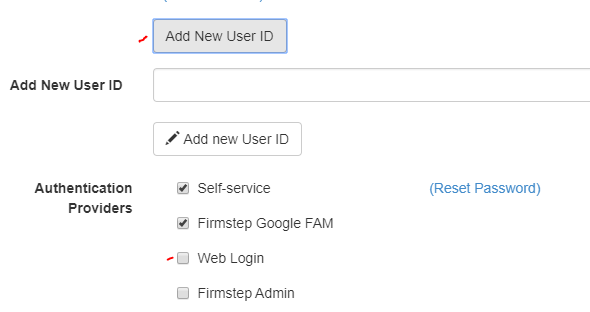
Add the ID to the user.
-
Make sure Web Login is ticked as an Authentication Provider.
-
Intauth logins can be included within the Service ticket & case data data dumper User table if requested via support - subject to the relevant configuration
Adding Admin Users
When an intauth (Web Login) site is first set up, the email address(es) of the user(s) that should be designated as Admins should be provided to the support or implementation representative with whom you are working. Granicus will then make these users Admins by granting them the 'Auth_Admin' role. Please note that the 'Administrator' role is reserved for Granicus representatives and controls all other features within the intauth site, such as password reset email content.
Users with the 'Auth_Admin' permission are able to access the /admin/people area of your intauth site and use this to create new users, to edit existing users, and to cancel existing user accounts.
To edit or delete Auth_Admin users of your intauth site, please request the relevant changes via support, quoting the email address(es) to be changed and the URL of your intauth site.
Note: Internal users can only be found by searching by UCRN in Service, i.e. by entering ucrn:00000000 into the Index and searching that. The platform labels a user as an ‘internal user’ if they have logged in to Dash, at any point, ever. What this means in practice is that when searching for an internal user in Service, they can only be found by searching for their ucrn, preceded by ‘ucrn:’.
Granicus_Azure_INTAUTH - Replacing Web Login
Introduction
In 2025, External Access Login /new Web Login (Granicus_Azure_INTAUTH) is replacing the existing functionality of Web Login. It will only be available on selected domains where External Access Login is required.
External Access Login is utilizing Azure AD B2C. It is usually implemented when external users need to access the Dashboard on the Staff/Dash Portal. All External Access Login users are required to use Two Factor Authentication during login to Internal sites.
One use case may be external contractors who need to access certain tasks in a case. These users would not be using your local network, so cannot authenticate to the platform using an FAM Login (aka Office Login). Other use cases could be remote workers who cannot authenticate via a VPN, or test accounts.
External Access users are required to have a Self Service user account already.
Note: In all these cases, if your site has been migrated to Azure AD, no separate External Access Login will be required, and this section can be ignored.
Requesting a External Access Login
An External Access Login should be set up by a CSA from within Permissions Manager or using a dedicated process with a special integration. Ideally, the user should already have an Azure B2C account.
Setting Up an External Access Login
To get started with an External Access Login, go to your Permission Manager site and search for the user under the User tab.
- Tick the Granicus_Azure_SSAUTH Authentication Provider option if not already selected.
- Note: If there is not already a Granicus_Azure_SSAUTH Authentication Provider option selected, then, when the Granicus_Azure_SSAUTH Authentication Provider option is selected, the system creates an Azure B2C account on their behalf. An email will be sent to them containing a Change Password link. The same email and password gives them access to both Customer Portal/Self and Internal sites.
Further useful reading:
top of page