This article explains how to use the various COVID-19 govAccess widgets. Jump to a specific widget:
govNews Feed Widget
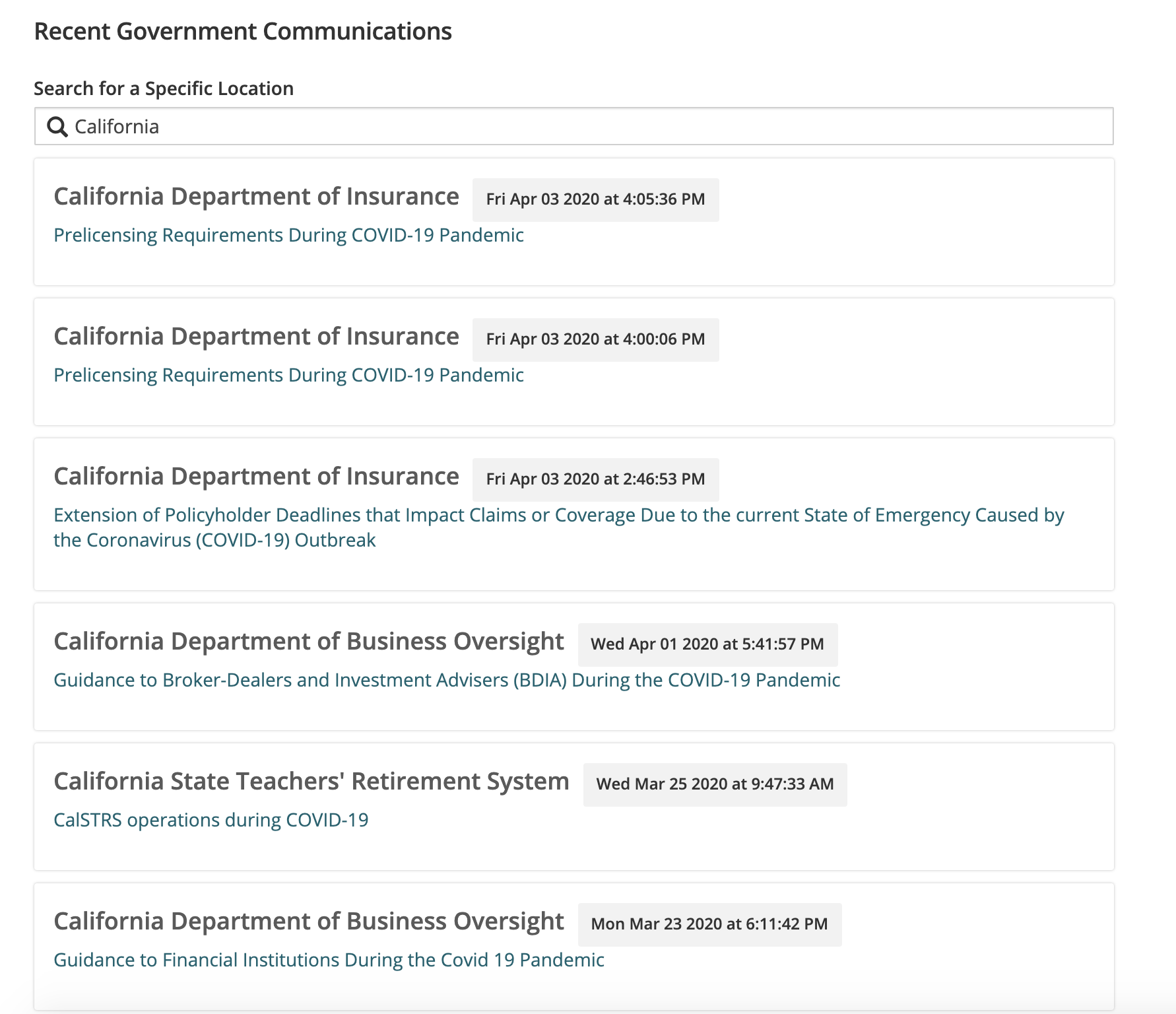
govNews Feed widget allows site visitors to view a list of govDelivery bulletins sent by agencies in their state. The search field will automatically populate with the state the website is set to, but you can type in a different state if you want. To view a bulletin, click the link in the feed.
govNews Search Widget
The govNews Search widget allows site visitors to search emails, legislative meetings, and websites for COVID-19 information from government agencies. Users can filter search results based on content type (email, legislative meetings, or websites). By default, most recently created content will appear first in search results.
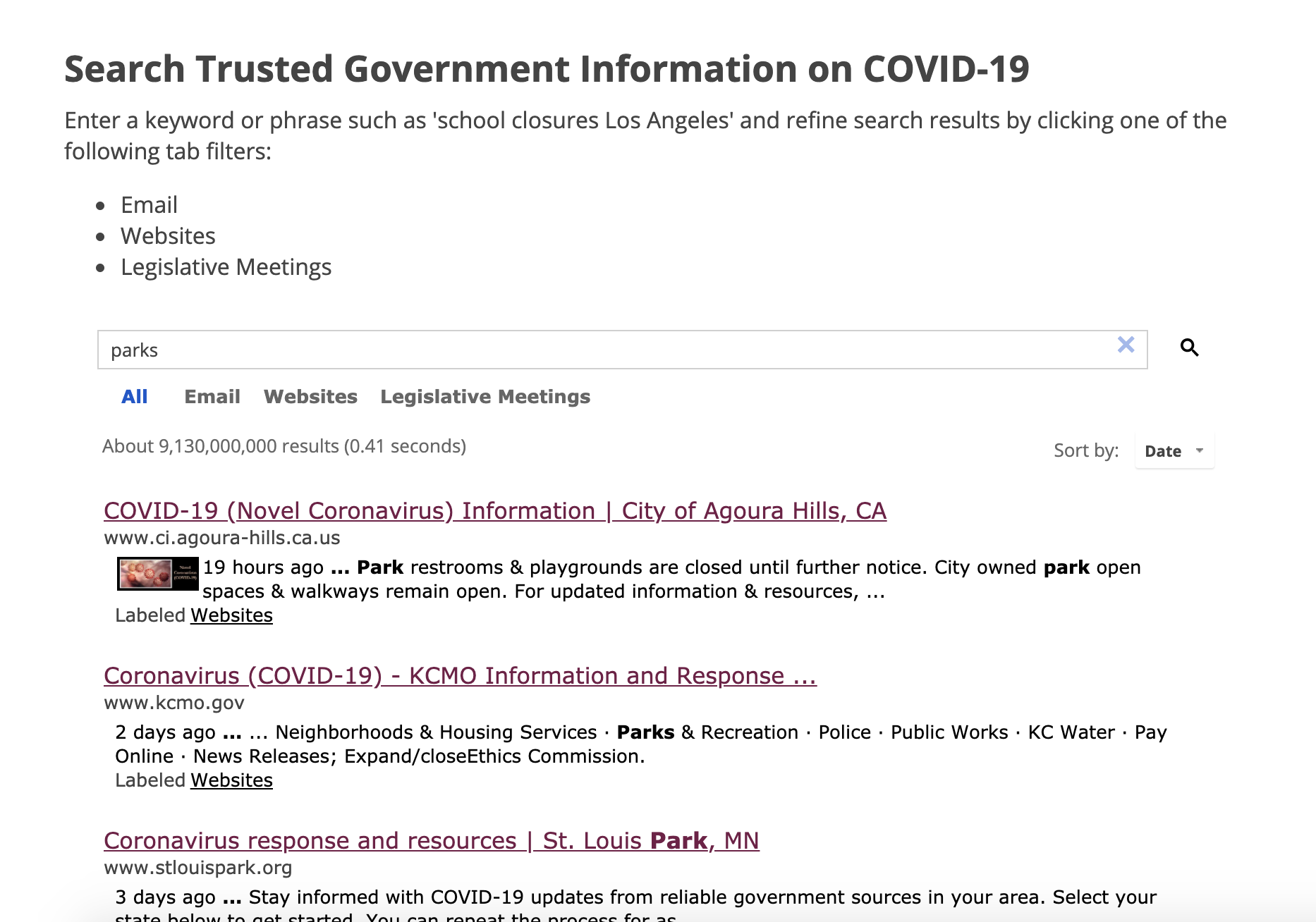
Note: Only add one Search widget per page. Any content below the widget will be pushed down when the Search widget's search bar is expanded to show search results.
Note: This feature is only available to US clients at this time.
The COVID-19 Subscriber Signup widgets allow site visitors to submit their email address to receive automatic notifications about COVID-19. These widgets work with another Granicus product, govDelivery, to provide a list of subjects citizens can subscribe to one or more of, based on their community preferences. You do not need a govDelivery account to use this feature. You would only need a govDelivery account to view the subscribers who signed up through the widget. Note: No one using the govAccess platform will be able to view the email addresses entered by citizens in the widget.
While we have 5 different COVID-19 Subscriber Signup widgets available, you will only be able to use one widget per page. All the widgets serve the same purpose, but are each slightly different to accommodate different use cases. Following are the different widget options along with images:
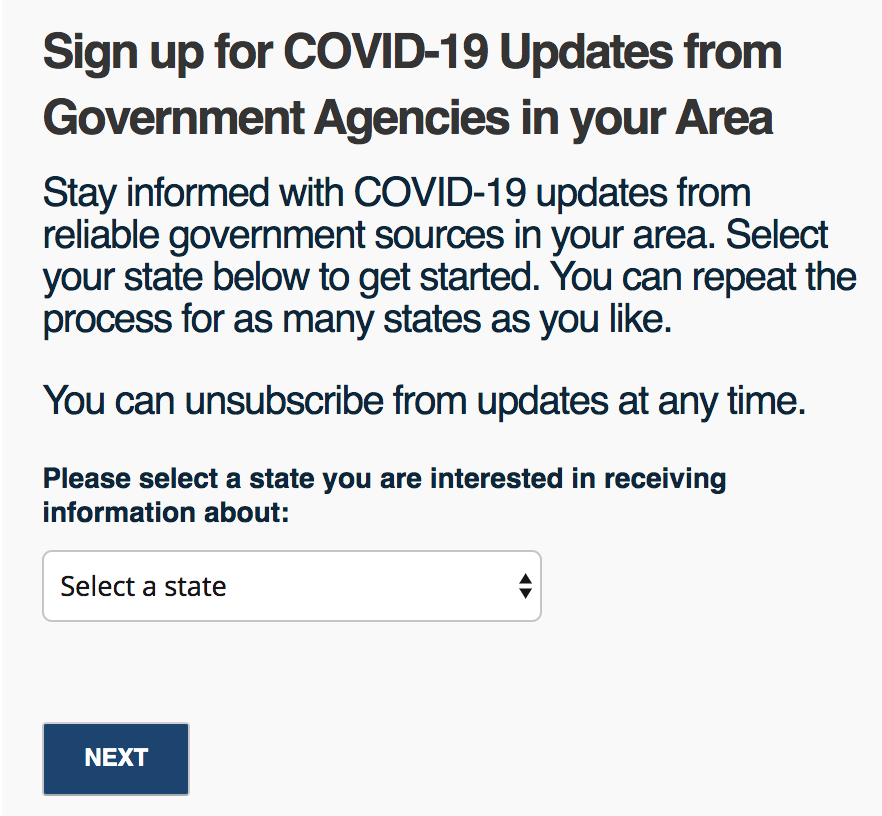
COVID-19 Signup
This Signup will be embedded on your page with a dropdown menu that allows users to select their state, then they can enter their email and select which State and Federal topics to subscribe to.
COVID-19 Embedded Signup (Federal)
This Signup will be embedded on your page with a field where users can enter their email and select which Federal topics to subscribe to.
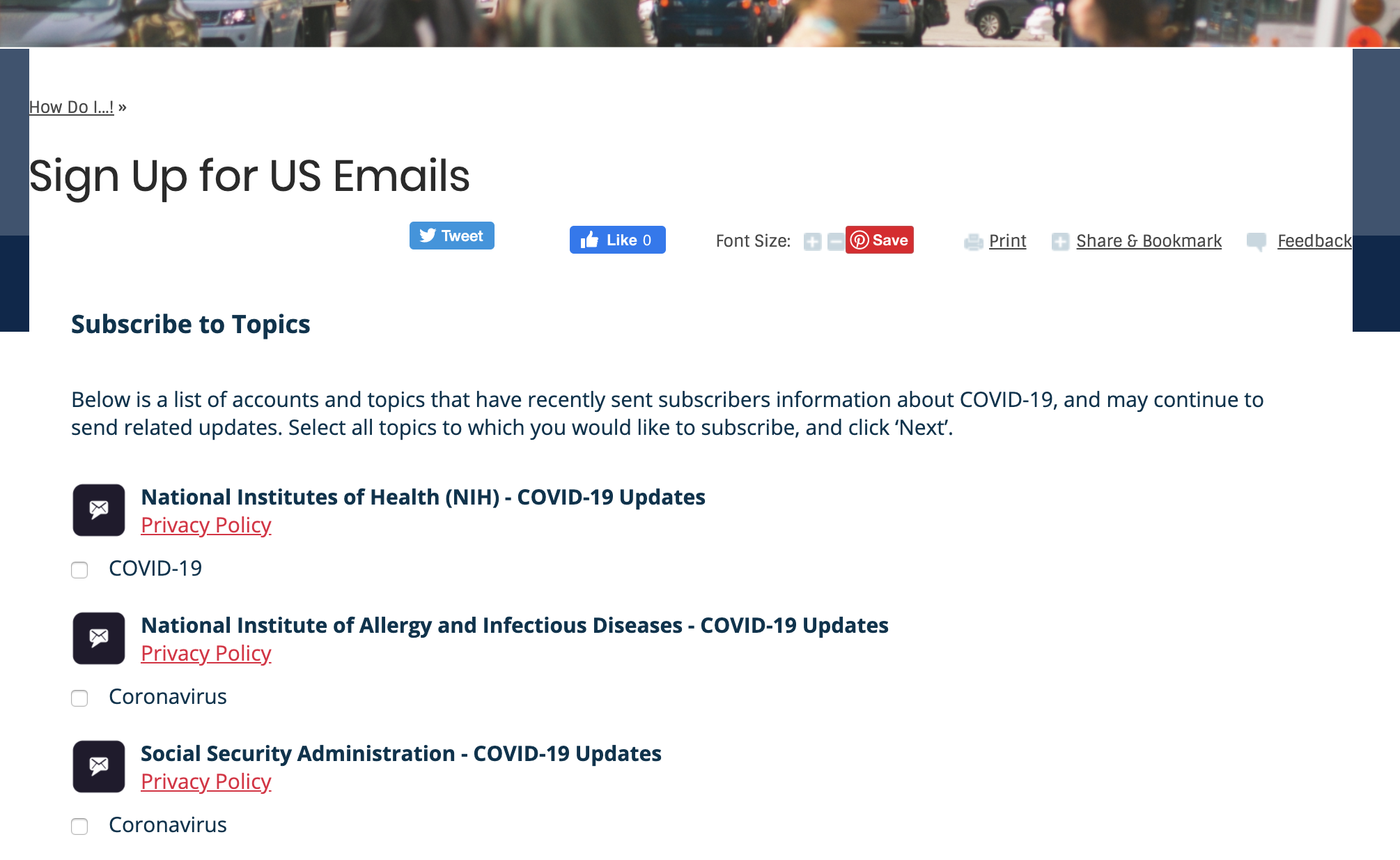
COVID-19 Embedded Signup (State)
This Signup will be embedded on your page with a field where users can enter their email and select which State topics to subscribe to. The correct state will already be selected for the citizen.
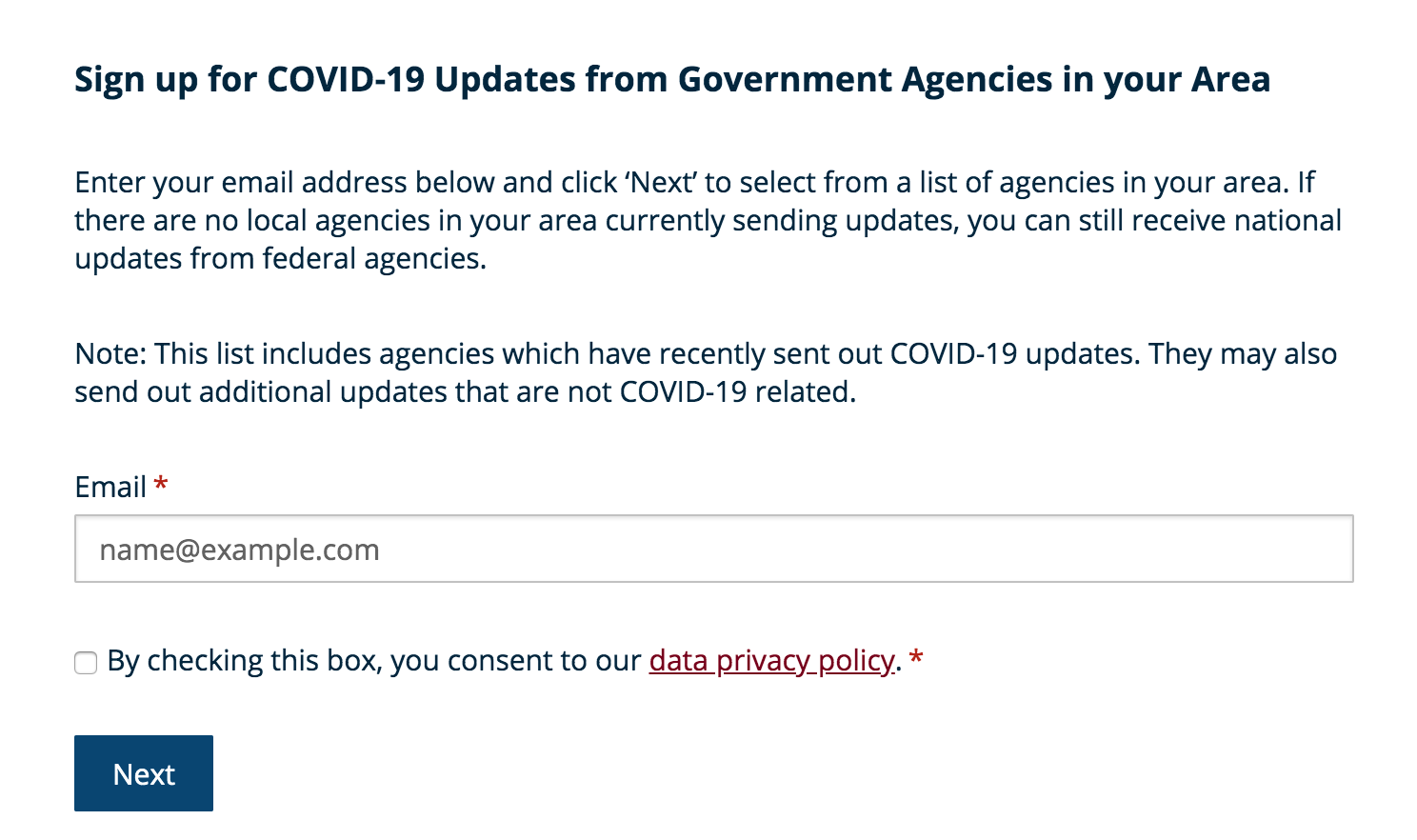
COVID-19 Overlay Signup (Federal)
This Signup will appear as an overlay with a field where users can enter their email and select which Federal topics to subscribe to.
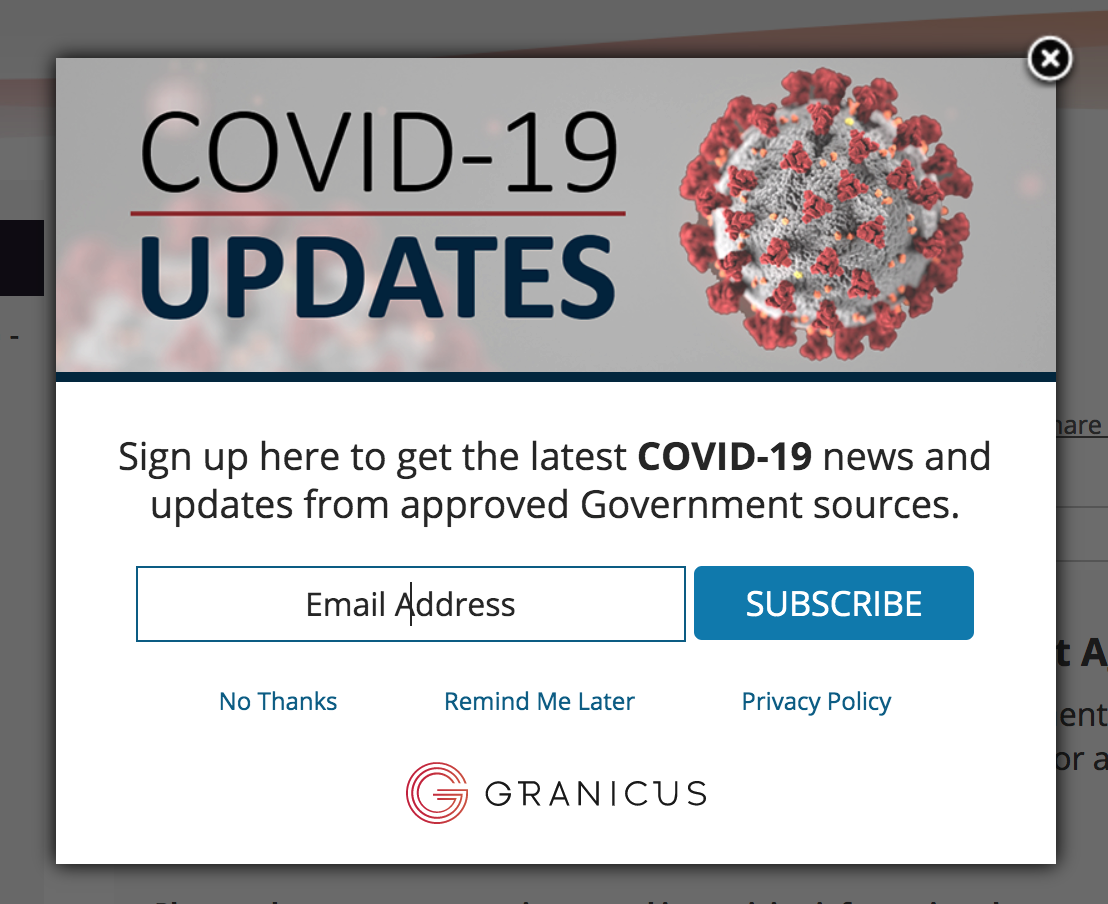
COVID-19 Overlay Signup (State)
This Signup will appear as an overlay with a field where users can enter their email and select which State topics to subscribe to. The correct state will already be selected for the citizen.
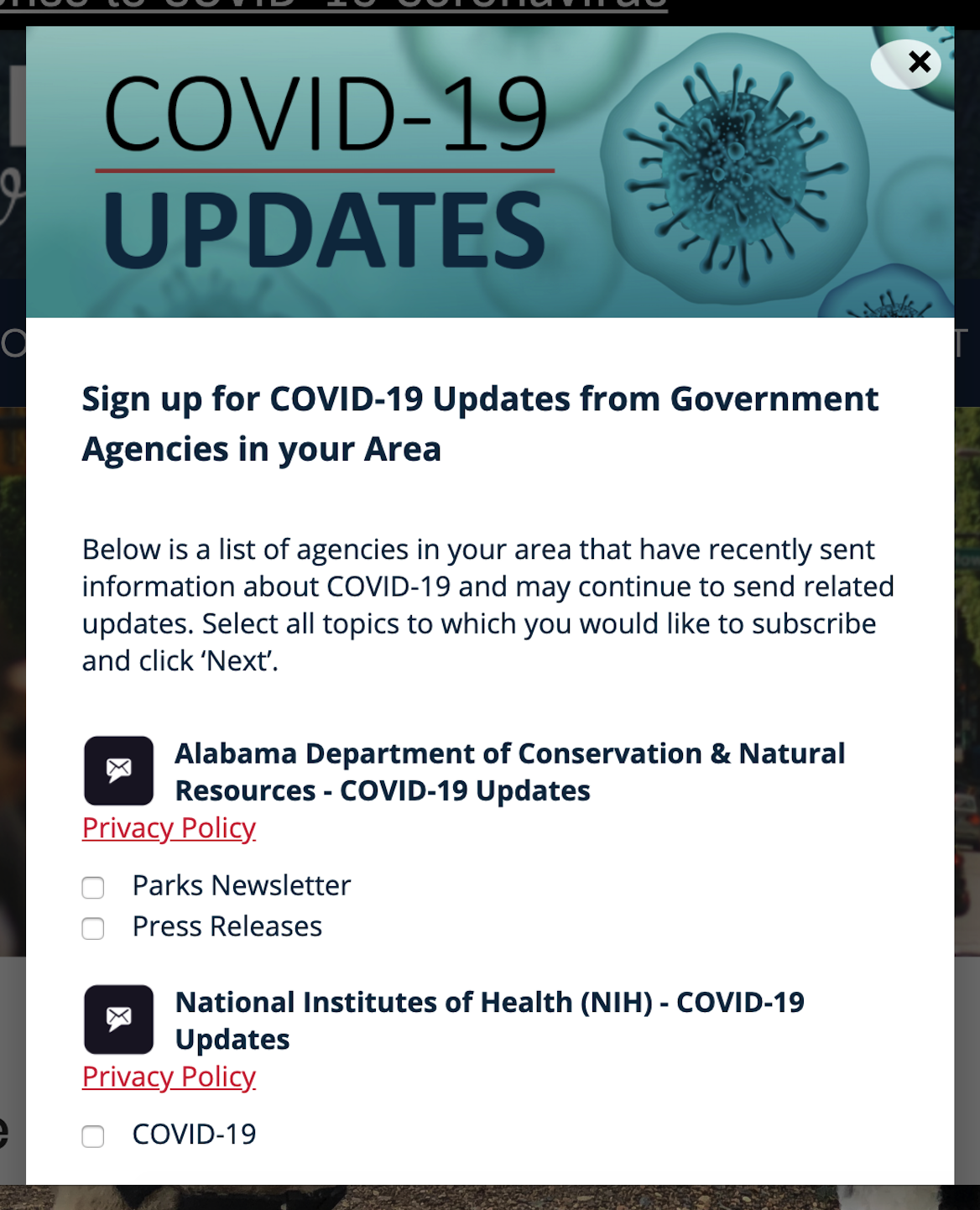
No matter which COVID-19 widget you chose, you will add them to your page in the same way.
How to add any COVID-19 widget to a page
This method allows you to directly edit a page. You need to log into your CMS admin, next:
- Open the Site Content menu
- Select Pages
- Select Tree View tab
- Click Menu next to the page you want to add the widget to
- Select Edit Design
- Expand the yellow banner on the left side of the screen and select the bulleted list icon to load the widget library
- Use the search to find your desired COVID-19 widget
- Drag and drop the widget into the desired page area
- Click the wrench icon on the widget to edit settings, if necessary
- Rename the Page Template Note: Updating the template directly in the page will automatically generate a copy of the original version.
- Click Publish
After clicking Publish, your page will be live for citizens to view.