New Features and Enhancements
In this section, you'll find updates to existing features as well as brand-new functionality.
Attachment List Displays on Item Cards throughout Peak
Anywhere an agenda item card displays, the list of attachments is now always shown. This applies to the following pages in Peak:
- Within agenda sections
- On the list of items shown via the Add Item button on an agenda
- On the Items page, with or without any filter in use, including in search results
- On the details of the item itself
You can collapse the list temporarily for a given screen. Once the page is reloaded, the attachment list will again be expanded.
Expand/Close Agenda Sections Button
We added an Expand all Sections button on the Agenda page. By default, the sections are collapsed. After the button is clicked, all sections on the agenda open, and the button becomes Close all Sections. Clicking it again will cause the agenda sections to collapse.
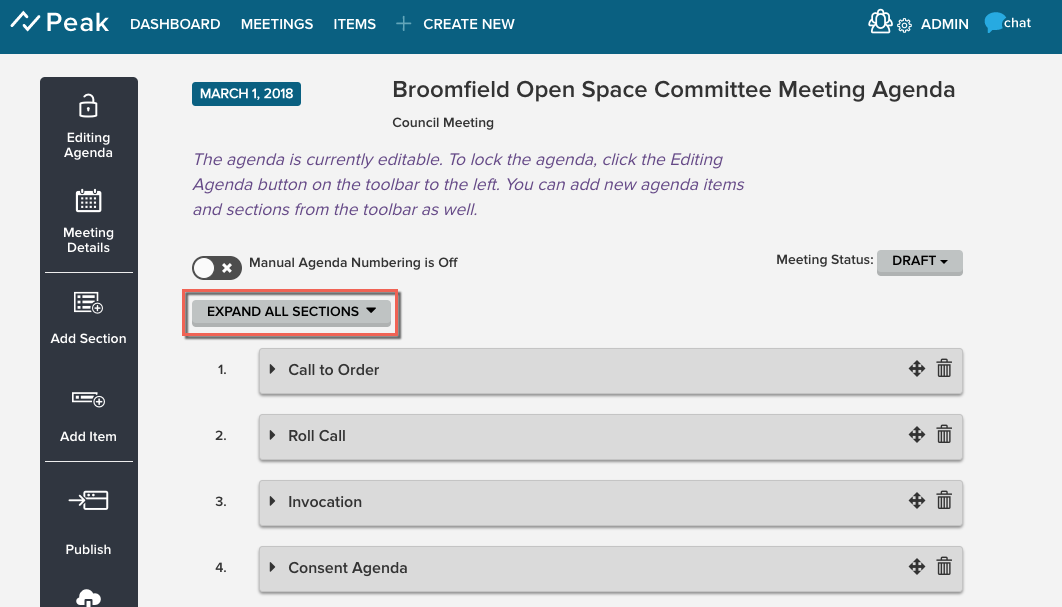
Sections maintain their opened or closed state even after changes are saved or canceled, but if the page is reloaded, the sections will again default to collapsed.
Note: If you expand all the sections and then use Add Item to add an existing or new agenda item, the section remains expanded with the new item added to the section. You can save the change by clicking the Save button. If you expand all the sections and then use the Add Section button and save it, that section is expanded automatically.
Agenda Page: Choose a View Menu Update
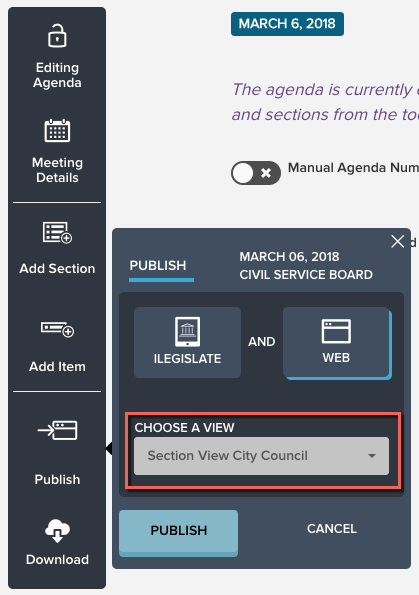
The Publish > Web function on the Agenda page now selects the view page automatically when there is only one option in the Choose a View menu.
Bug Fixes
- Agenda item attachment re-sorting using drag and drop—in particular, moving the first item down—was not always working properly. This issue is resolved.
- The left menu options on the Agenda Item Details page are not controlled by the Cancel or Save buttons. Left menu options include Item Locked/Editing Item, Set Status to In Draft/Approved, and Cover Page Included/Excluded. These actions happen independently, so no unsaved notification message is given when the buttons are used. Any changes to the details of the item generate the unsaved notification and should be saved independently of using any of these button actions. Clicking Save while an item is locked no longer hangs the Save button.
- A drafter can create a new version of or delete an agenda item with a very long title. In the past, the trash can icon and the New Version button were unreachable for items with very long titles.
- When a drafter transitioned between Approval Status and Item Details tabs, the approval status remained underlined. We've fixed this, and now only the active tab is underlined.