Contents
How From Addresses Work
You must be an Account Administrator to view your account’s From Addresses or request new addresses. If you are a Topic or Group Administrator, you will need to contact your Account Administrator for more information about your account's From Addresses.
A From Address is the name and email address that your govDelivery bulletins are sent from. The From Address identifies to subscribers who is sending the email. The right From Address conveys credibility to your subscribers as they skim their inboxes, and encourages them to open and read your messages.
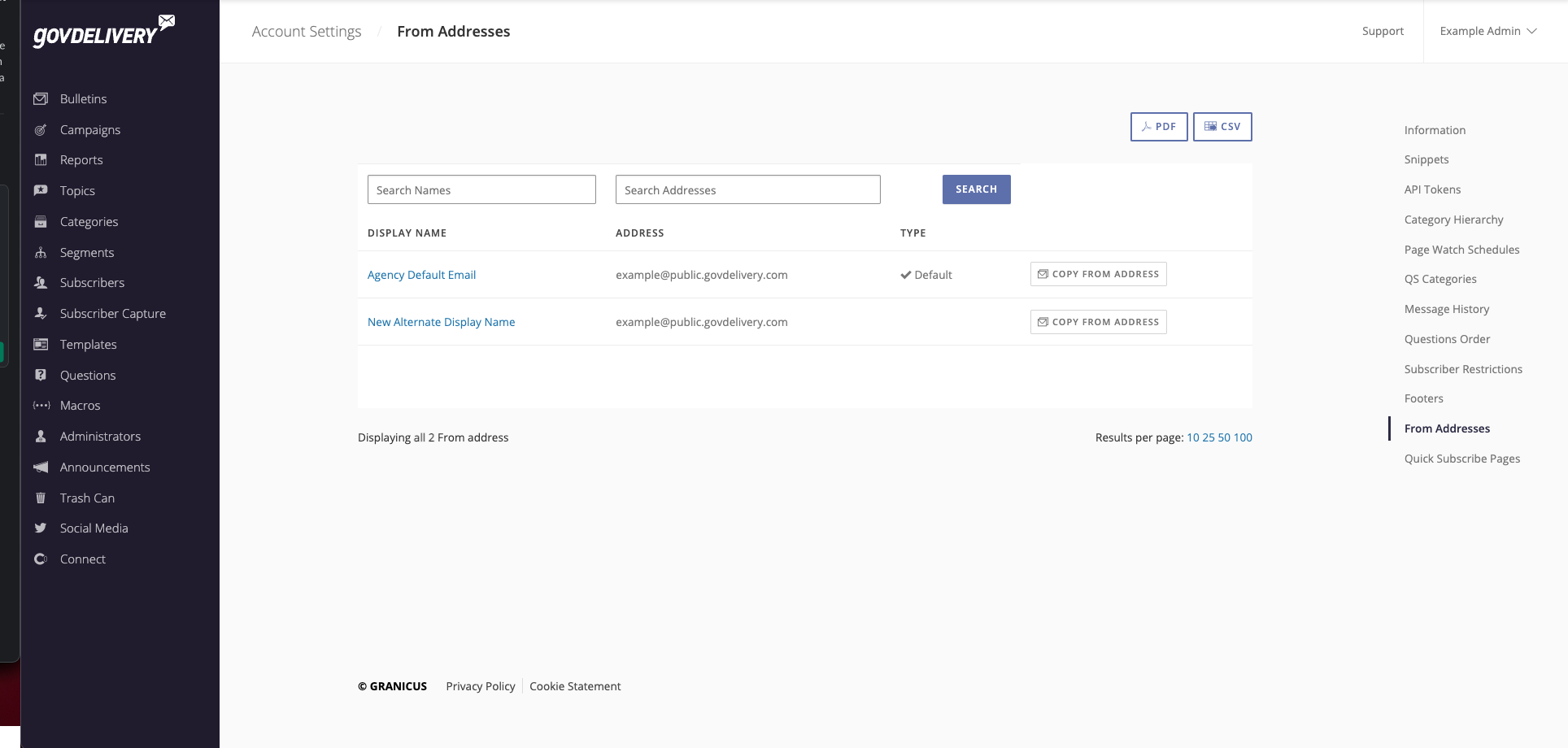
If you are an Account Administrator, you can view the From Addresses that are available for your account. To do so:
- Click your username in the top right corner of the site.
- Click Account Settings from the drop-down user menu.
- Click From Addresses in the Account settings menu on the right.
Your account can contain multiple From Addresses, allowing your administrators to send to different topics or groups of subscribers with unique From Addresses, depending on the subject or content of the message.
Your account will contain one default From Address, which is used if no other From Address is specified for a bulletin or template. Additional default From Addresses are assigned within bulletin templates. Any bulletin created from a bulletin template will have the From Address assigned for that template selected by default.
If multiple From Addresses are available, your Topic Administrators can select a different address when creating and sending bulletins.
Step 1 - Plan Your From Addresses
When your account is first created, our implementation team will help you to identify the From Addresses you need for your account. Your account can contain multiple From Addresses. You can also use multiple display names for the same From Address. The display name appears in the subscriber’s email inbox. This means you have fewer email accounts to administer, but you still have the flexibility to make your messages easily identifiable in your subscribers’ inboxes.
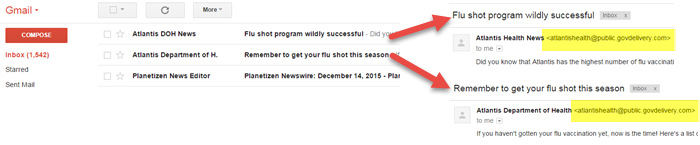
Additionally, you can choose to have certain From Addresses or display names limited to a specific topic. Limiting a From Address or display name to a specific topic ensures that it is not incorrectly used by accident.
As you add additional topics or categories to your account, consider which From Address and display name you’d like to use. In planning your From Addresses and display names, it’s important to note that From Addresses should not use the top-level domain for your site. For more information, see From Address Domains.
Step 2 - Request New From Addresses
Due to the technical nature of From Addresses, configuring and adding a new unique From Address in your account is something that must be completed by Granicus Customer Support.
Contact us at support@granicus.com and please include the following:
- Your desired From Address
- The display names you’d like to use
- Indication of whether you want to restrict the From Address to a specific topic
- Account Administrator approval (if you are not an Account Administrator)
Optional:
Note: Account Administrators can copy existing From Addresses to create new display names without having to contact support. To learn more about editing and copying From Addresses, click here.
Note: When submitting your request, please also include your account name and confirmation that you are an Account Administrator.
What happens next
- Granicus Customer Support will route your request to our engineering team for configuration.
- We will notify you when the From Address is ready to use.
After configuration
- Select the new From Address when creating and sending bulletins or assign it in the appropriate templates and product settings.
- Send a verification message to a small internal audience to confirm that the display name and address appear as expected and are delivering successfully. Note that courtesy copies and test bulletins always use the default From Address for your account.
Step 3 - Assign From Addresses
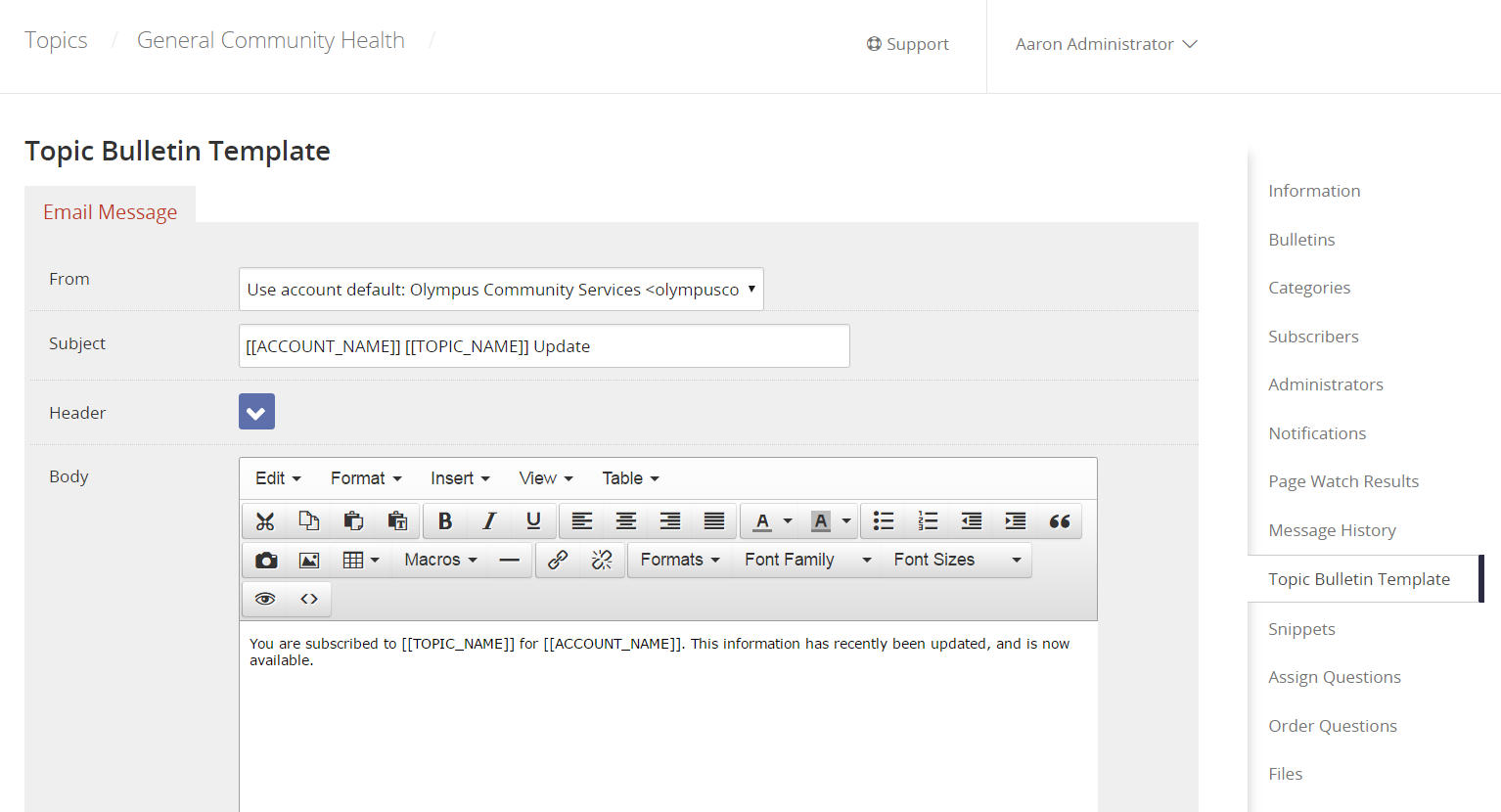
Once a From Address or display name is added to your account, you must assign it to the appropriate template. For more information about default templates in your account, see Setting Default Bulletin Templates.
To access a topic’s bulletin template:
- Click Topics in the left navigation menu.
- Click a topic in the list.
- Click Topic Bulletin Template in the Topic menu on the right.
You can set the From Address or display name here. It is set as the From Address by default for any bulletins created from this template. Note that courtesy copies and test bulletins always use the default From Address for your account.
From Address Domains
You should use a subdomain when choosing a From Address for your organization. For example, you would use something like @info.Atlantis.gov, instead of the top-level domain of @Atlantis.gov.
Your dedicated sub-domain must also have the following DNS records present:
govDelivery–specific MX and SPF Records:
The new subdomain DNS record must be updated with a Granicus govDelivery–specific MX and SPF records, which results in all email to that subdomain being managed by Granicus. Setting up an MX record means that your email systems will not be overwhelmed with message responses, as those are managed through Granicus’s email infrastructure. The Granicus SPF record authorizes Granicus to send email on behalf of your domain.
To set up this option properly your email administrator will need to add two new DNS records of type MX on your subdomain:
Note: Values in these tables may render as clickable links; however, they are for informational purposes only and are not intended to function as active URLs.
|
Domain
|
Type
|
Preference Value
|
Answer
|
|
updates.yourdomain.gov
|
MX
|
10
|
mx.public.govdelivery.com
|
|
updates.yourdomain.gov
|
MX
|
30
|
mx2.public.govdelivery.com
|
|
us-east.updates.yourdomain.gov
|
MX
|
10
|
feedback-smtp.us-east-1.amazonses.com
|
|
us-west.updates.yourdomain.gov
|
MX
|
10
|
feedback-smtp.us-west-2.amazonses.com
|
|
|
|
|
|
|
|
|
|
mx.mail.granicus-communications.uk
|
|
|
|
|
mx2.mail.granicus-communications.uk
|
|
|
|
|
|
As well as multiple records for SPF authentication:
For the US
| Domain | Type | Answer |
|
updates.yourdomain.gov
|
TXT
|
v=spf1 a mx include:public.govdelivery.com -all
|
|
us-east.updates.yourdomain.gov
|
TXT
|
v=spf1 a mx include:public.govdelivery.com -all
|
|
us-west.updates.yourdomain.gov
|
TXT
|
v=spf1 a mx include:public.govdelivery.com -all
|
For the UK
| Domain | Type | Answer |
| updates.yourdomain.gov | TXT | v=spf1 a mx include:mail.granicus-communications.uk -all |
| eu-west.updates.yourdomain.gov | TXT | v=spf1 a mx include:mail.granicus-communications.uk -all |
The rationale is that we use Sender Policy Framework (SPF) records to identify ourselves to mail servers as a trusted sender on your behalf. When you request a new From Address, Granicus verifies that you add us to the SPF and MX records for that subdomain. When govDelivery sends messages for you, we authenticate the sending domain using Sender Policy Framework so mail servers recognize your messages as legitimate and do not flag them as spam.
We cannot publish SPF records for your top-level domain due to the nature of email. If you were to put an SPF record in place for us to send from your top-level domain, you would be prevented by the ISPs from using that domain for your own internal emails.
See Using SPF Record to Improve Email Deliverability for more information about SPF records.
DKIM and DMARC Records:
Some mail providers, such as Gmail, now require both DKIM and DMARC records to be present when sending email in bulk. DKIM and DMARC records help to validate that the sender of the email (in this case Granicus) is authorized to send email from your sub-domain.
While obtaining a new From Address, Granicus Customer Support will provide six DKIM CNAME to add to your DNS. These CNAME records point to Granicus managed DKIM values and allow Granicus to digitally sign messages sent on your behalf without requiring you to manage DKIM keys directly. Once Granicus engineers confirm that these records have been added, emails sent from your subdomain will be signed with DKIM automatically.
DMARC records can be set on your domain at any time and does not require the record be provided by Granicus Support.
For more information about DKIM and DMARC records, see DKIM & DMARC.
Once a subdomain is confirmed to have SPF, MX, DKIM through CNAME records and DMARC in place, it can be added to your govDelivery account for use.
Editing and Copying From Addresses
Account Administrators can edit the Display Name and Topic Assignments of their existing From Addresses. In addition, they also can copy an existing From Address to create a new Display Name.
Note: Admins can alter the Display Name as well as topic assignments but cannot edit the email address. To create a new From Address or modify the email address of an existing From Address, contact the Granicus Support Team.
To update the Display Name for a From Address:
- Access your From Addresses.
- Click the Display Name you wish to update.
- Edit the Display Name.
- Click Save.
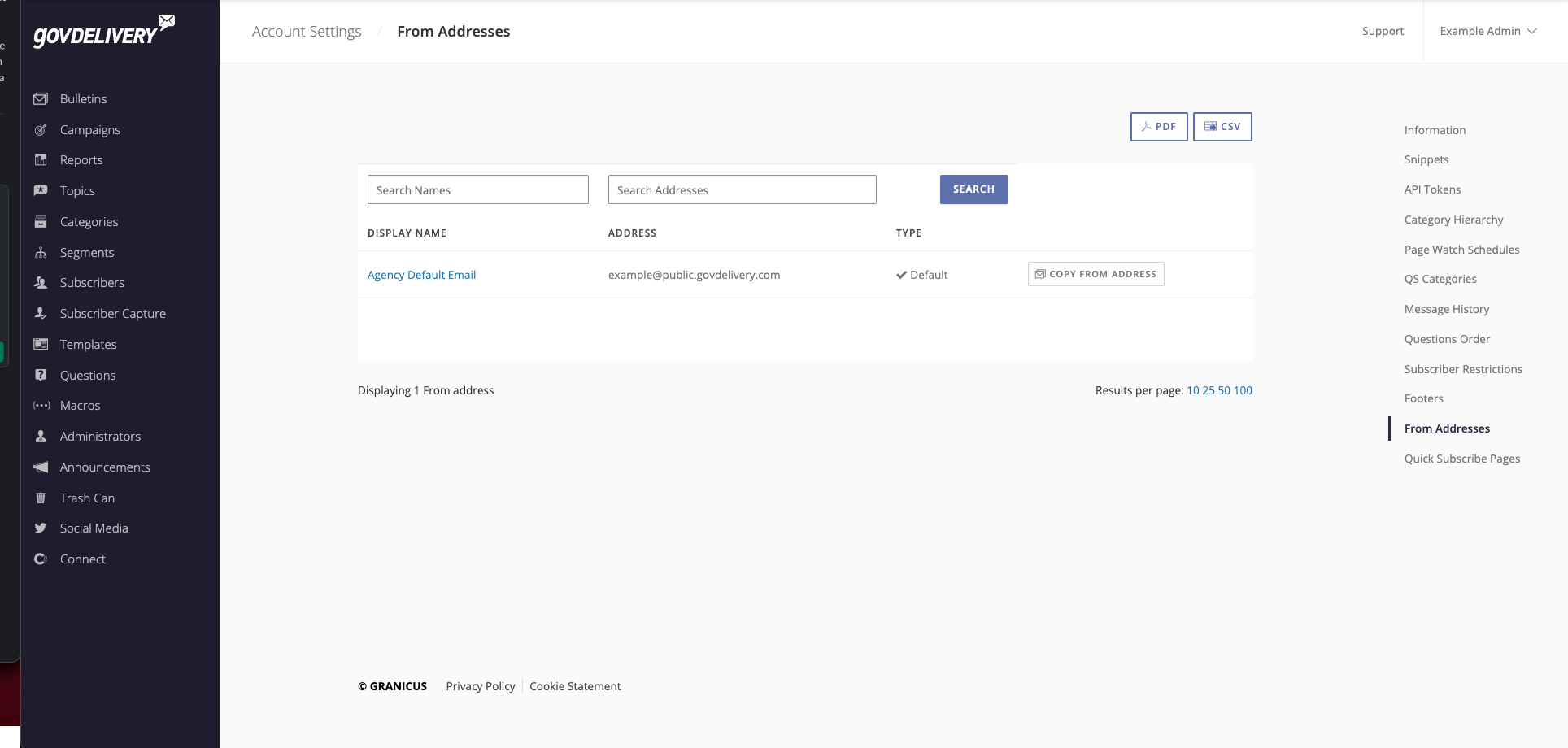
To Copy a From Address:
- Click Copy From Address to the right of the From Address.
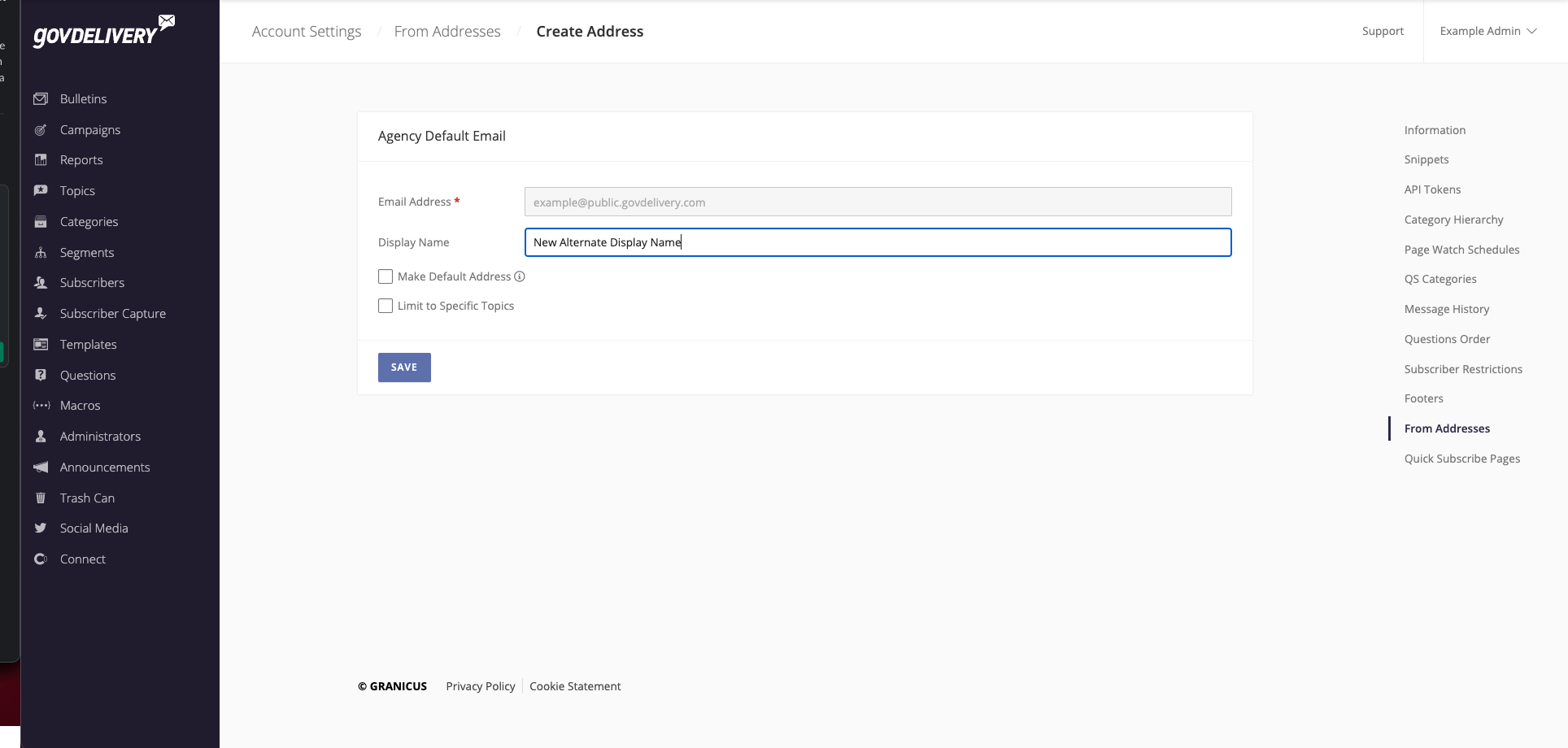
Here you can update the Display Name, set the address as Default Address, or enable Limit to Specific Topics. When you select Limit to Specific Topics, you can assign that From Address to specific Topics. After you Save the From Address with the Limit to Specific Topics, the page reloads and displays a Topics tab, where you can manage and update the topic selection.