Administrators, Agenda Coordinators, and Drafters can generate an agenda item packet for a given agenda item. Packets can be created for the public or for council and will contain the cover page along with attachments as ordered on the agenda item. You can generate this packet from the Agenda Item Details page using the toolbar on the left side of the page.
You can follow either the video or written instructions below.
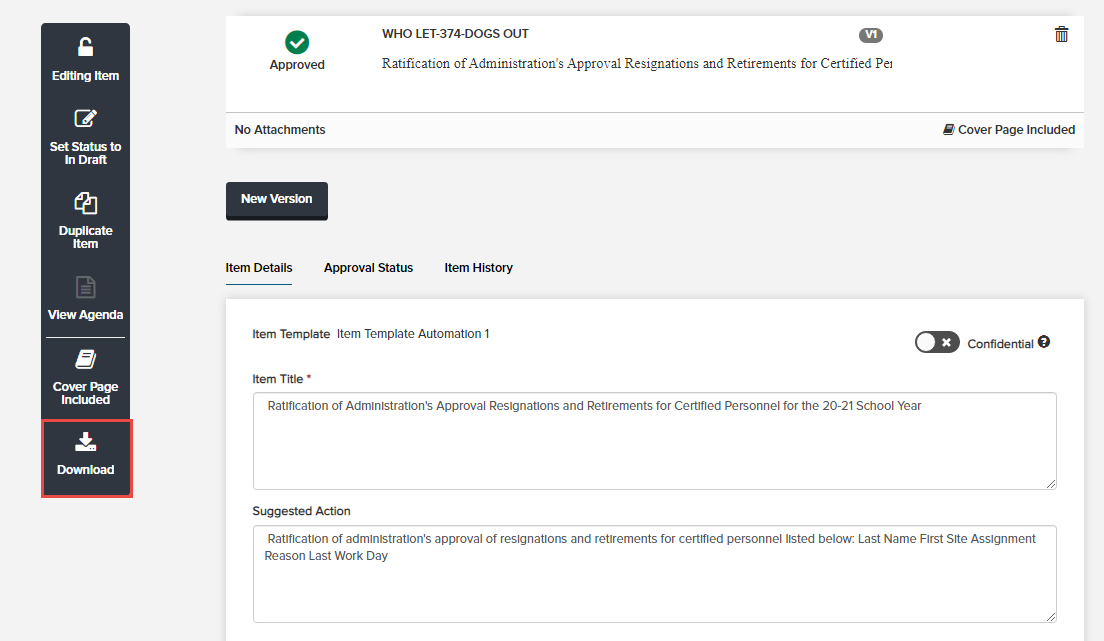
- From the Agenda Item Details page, click Download in the toolbar on the left.
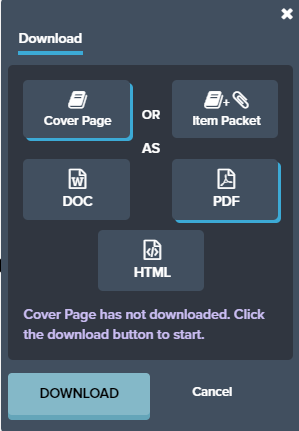
- The download popup menu displays, giving you the option to download a cover page only (in DOC, PDF, or HTML format), or an item packet with attachments (item packets are always in PDF format). Click Item Packet. Note: If you do not have Template Builder enabled you will not have the HTML option. If you wish to have this feature, contact your Granicus account representative.
- Select whether you'd like to generate packet for the public, with public attachments only, or a packet for council, which will also include attachments marked as Private.
Note: The attachment indicator below the Generate Packet button will show you whether all non-PDF attachments on agenda items belonging to this agenda have been converted to PDF. It will also indicate whether PDF attachments are ready for collation.
- If the indicator is still red, a packet can be generated, but the agenda report/cover page report links for any attachments that have not yet converted will still link to the native form (e.g., DOCX) of the file.
- Non-converted files and any PDFs that were flagged will not be collated with the packet.
- Collation will not work if you have attached any encrypted files.
Click the indicator to see a list of files that have successfully converted and those that have not, and refresh the indicator until all files that are not ready have been marked as converted.
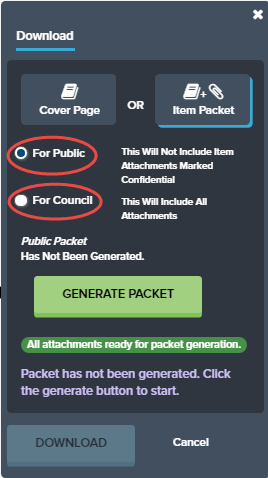
- Click the Generate Packet button. Note that the Download button is not functional until your packet has generated.
- Once the packet generation is complete, the text below the Generate button will let you know that the packet is ready for download, and the Download button will no longer be grayed out. Click Download.
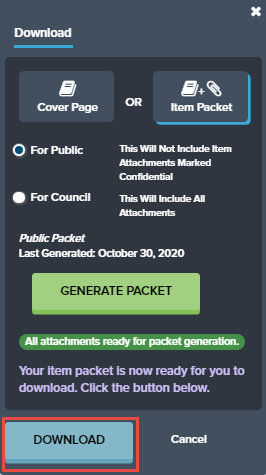
The packet generates as a PDF and contains the item's cover page (if set to be included) along with attachments as ordered on the agenda item.
- The public packet contains only those attachments labeled as Public in the attachment privacy settings.
- The packet for council contains all attachments that are marked Public as well as those marked Private. Attachments that are marked as Hidden are not included in the council item packet.
- The packet will not generate if any encrypted files are attached. To continue but not include these files in your packet, mark them as Hidden.
Note: Encrypted or protected PDFs (common with digitally signed documents, such as DocuSign) cannot be processed when the system collates a packet and may appear as "encrypted or not supported," fail posting to Legislate, or render as corrupted when downloaded from your website.To resolve this issue, flatten the file to a non-encrypted, single-layer PDF and replace the attachment before generating the packet again:
- On Windows using Microsoft Print to PDF:
- Open the PDF in your viewer (Adobe Acrobat/Reader or your browser).
- Choose Print and select "Microsoft Print to PDF" as the printer.
- Print to create a new PDF (this removes encryption and flattens layers/forms in most cases).
- Save with a safe filename (letters, numbers, hyphens, underscores, periods only).
- Replace the original attachment with this new file and generate the packet again.
- If printing to PDF is unavailable: Export the document to PDF using your editor's "Save as PDF" or "Export to PDF" with security disabled and fonts embedded.
Additional tips:
- For DocuSign or other e-signature tools, ensure the final file is flattened and not password-protected before upload.
- If the packet fails to post to Legislate due to an attachment, recreate the problematic attachment using the steps above and re-publish.
- If a downloaded public packet appears corrupted, re-generate after flattening any signed or complex attachments.
Troubleshooting packet generation errors:
What these errors generally mean: The packet generator encountered a problematic attachment, commonly an encrypted or password-protected PDF, a digitally signed PDF, or a file with unsupported content.
Step-by-step fix:
- Identify the attachment causing the error. Use the attachment indicator below the Generate Packet button to review which files have converted and which have not.
- Remove encryption/password protection and flatten the PDF. Use the methods above (Microsoft Print to PDF) to create a clean, single-layer PDF.
- Remove live digital signatures. Digitally signed or DocuSign-authenticated PDFs are frequently incompatible with collation. Flatten via Print to PDF or re-export without live signatures; the signature will remain visually, but interactivity is removed.
- Re-upload the cleaned file to the agenda item and regenerate the packet.
- If errors persist, check for the following:
- Unsupported fonts: Re-export as PDF/A or print to PDF.
- Invalid characters in attachment names: Use only letters, numbers, hyphens, underscores, and periods.
- Extremely large or complex PDFs: Optimize or reduce file size.
Notes:
- Files may open fine in other systems but still fail packet generation due to stricter validation.
- If multiple attachments fail, clean them all before reattempting.
Troubleshooting packet generation errors:
What these errors generally mean: The packet generator encountered a problematic attachment, commonly an encrypted or password-protected PDF, a digitally signed PDF, or a file with unsupported content.
Step-by-step fix:
- Identify the attachment causing the error. Use the attachment indicator below the Generate Packet button to review which files have converted and which have not.
- Remove encryption/password protection and flatten the PDF. Use the methods above (Microsoft Print to PDF) to create a clean, single-layer PDF.
- Remove live digital signatures. Digitally signed or DocuSign-authenticated PDFs are frequently incompatible with collation. Flatten via Print to PDF or re-export without live signatures; the signature will remain visually, but interactivity is removed.
- Re-upload the cleaned file to the agenda item and regenerate the packet.
- If errors persist, check for the following:
- Unsupported fonts: Re-export as PDF/A or print to PDF.
- Invalid characters in attachment names: Use only letters, numbers, hyphens, underscores, and periods.
- Extremely large or complex PDFs: Optimize or reduce file size.
Notes:
- Files may open fine in other systems but still fail packet generation due to stricter validation.
- If multiple attachments fail, clean them all before reattempting.
The agenda item and each attachment are bookmarked in the packet. The bookmark title will depend upon which option is selected in Admin via the drop-down menu on the Site Settings page. Pages in the item packet are numbered consecutively starting at 1 in the bottom right corner.
You can elect to have current approval workflow information display on the cover page report. This information includes the following:
- item state
- when the workflow was added
- when a phase was added
- when a user was added to a phase by an editor or by delegation
- whether an approver approved an item or was an FYI only
- whether a phase was skipped or completed normally
You can also elect to have agenda item numbers added to your cover page reports for those items that are associated with an agenda. Contact Customer Support to request samples of the available layouts if you'd like this information added to your cover pages.
Note: For full functionality with agenda packets, ensure that you do not have pop-up blockers enabled on your browser.