Vision administrators can display Google Analytics information on their Vision dashboards. To set up the display of Google Analytics information, follow these steps.
Note: Only Vision Super Users can complete this setup process.
- In Google Analytics, open the property (website) for which you want to display information in Vision.
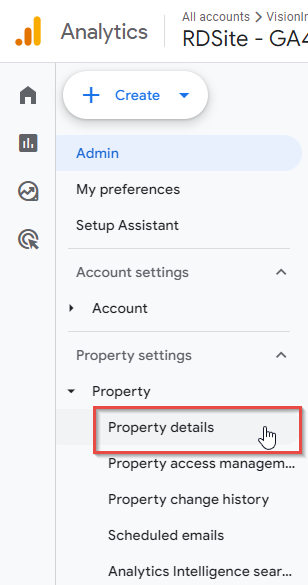
- In the left navigation bar, navigate to Admin > Property settings > Property > Property details.
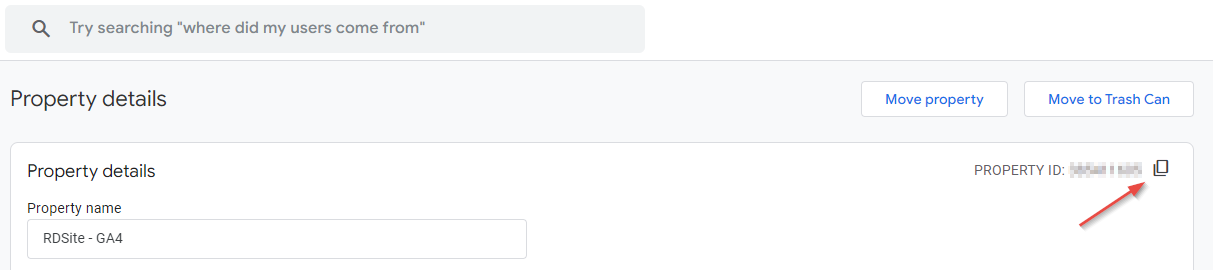
- The top right corner of the page shows the property ID. Click the copy icon to copy the ID.
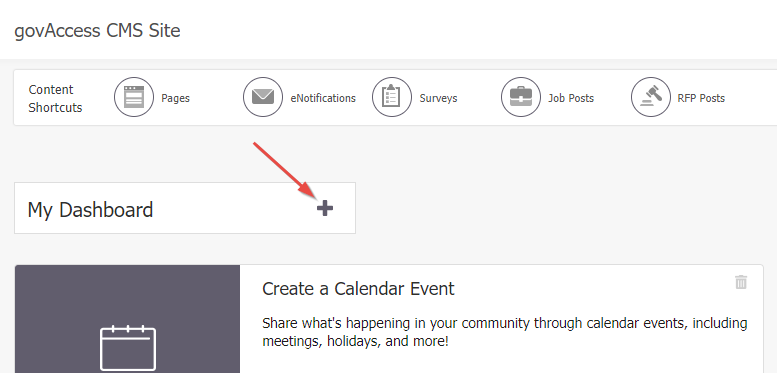
- Open your Vision administrator dashboard.
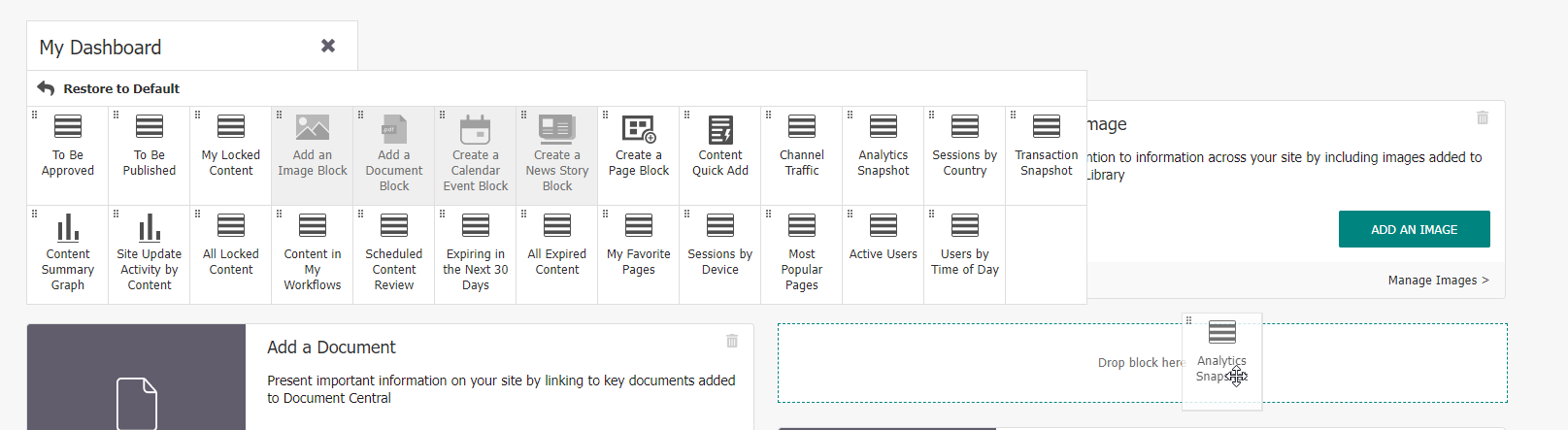
- Click the plus icon next to My Dashboard to open the menu of dashboard blocks you can add.
- Click and drag any of the seven Google Analytics dashboard blocks (Channel Traffic, Analytics Snapshot, Sessions by Country, Sessions by Device, Most Popular Pages, Active Users, or Users by Time of Day) and drop them in the desired location on your dashboard.
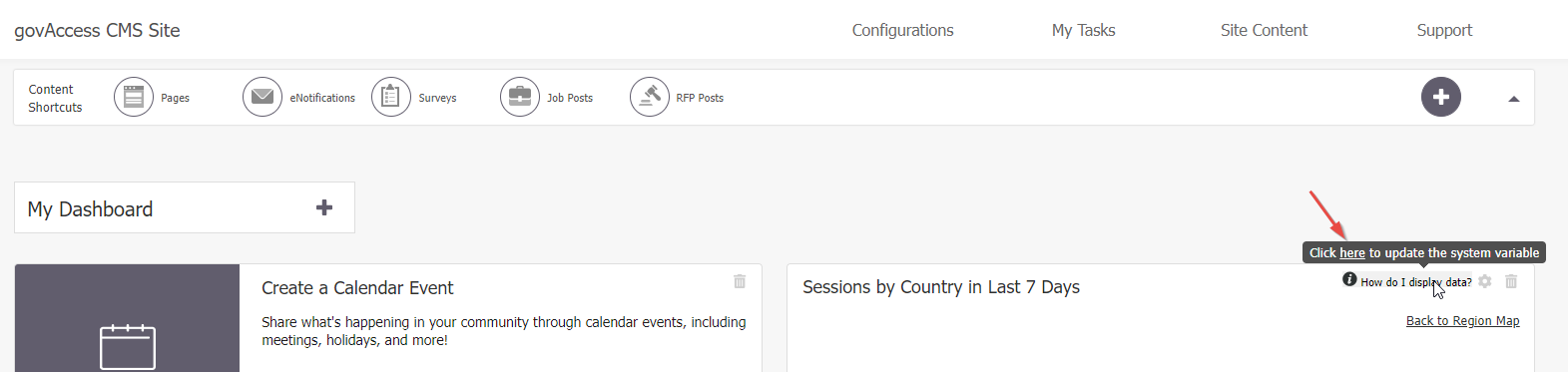
- In one of the dashboard blocks you just added, hover over How do I display data? and click the word here in the expanded tooltip.
- In the form that populates, paste the property ID you copied in step 3 into the Value field.
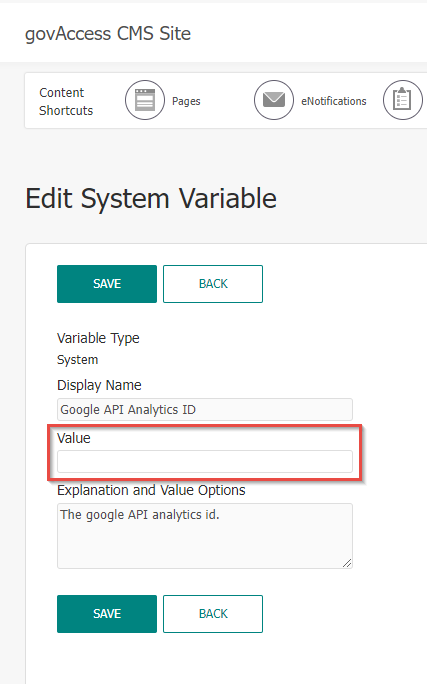
- Click Save.
- Click My Dashboard to navigate back to your dashboard.
- Click the gear icon in the same dashboard block you just edited.
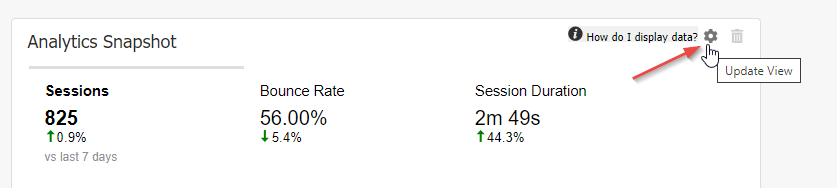
- In the form that populates, click Re-Authenticate.
- When prompted, sign in using the email address used for your Google Analytics account.
- If the correct website is not already selected, click the Website drop-down menu and select the website for which you want to display information. (The website is listed with its property name and property ID.)
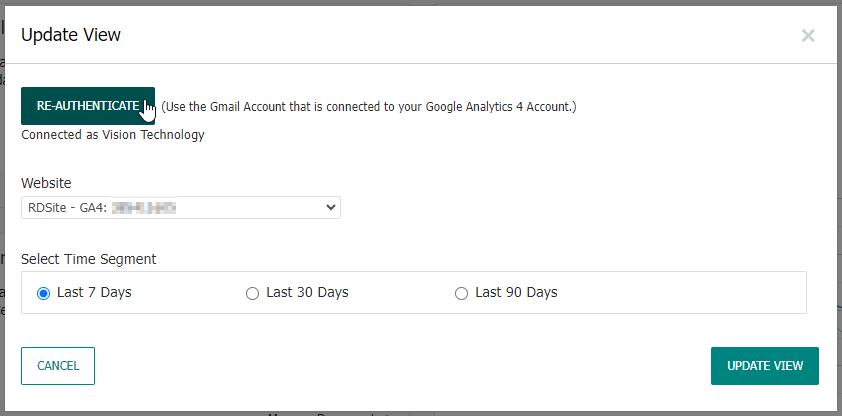
- Click Update View.
- Refresh your dashboard. The dashboard blocks you added now display Google Analytics information for your website.